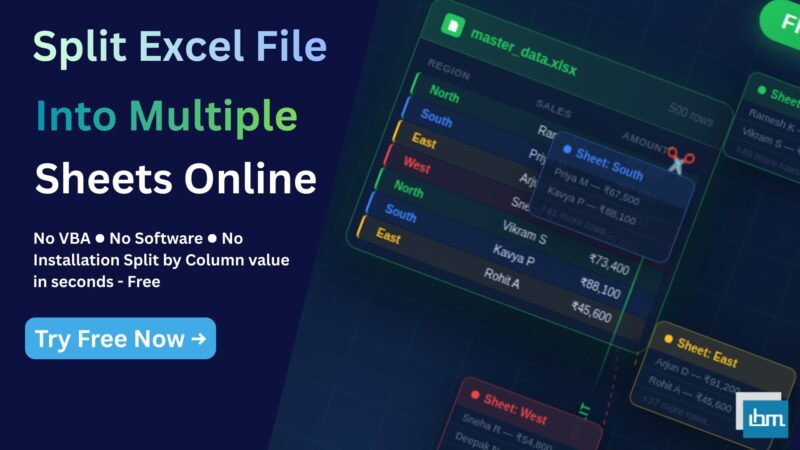


You have one large Excel sheet. Inside it, data for five different regions, or ten different departments, or twenty different sales representatives – all mixed together in a single worksheet. Your job is to separate them into individual sheets so each team gets only their own data.
The traditional approach? Write a VBA macro, install a paid Excel add-in like Kutools or Ablebits, or spend hours manually filtering and copying data into new sheets one by one. Every one of these options either requires technical skill, costs money, or wastes valuable time.
There is now a faster way. Our free Excel Worksheet Split Tool lets you split any Excel file into multiple sheets by column value – directly in your browser. No VBA. No software. No installation. Just upload, configure, and download.
Why Splitting Excel Data into Multiple Sheets Is So Painful
Splitting a large Excel dataset sounds simple in theory – divide rows based on a category column and put each group into its own sheet. In practice, professionals run into one obstacle after another.
Here is what most people end up dealing with:
- VBA macros require coding knowledge, break on different Excel versions, and are risky to run on business files
- Paid add-ins like Kutools and Ablebits work only on desktop Excel and require installation with admin permissions
- Manual filtering and copy-paste across 20 or 50 unique column values takes hours and introduces errors
- Power Query works only in newer Excel versions and has a steep learning curve for non-technical users
- Online splitters like GroupDocs and Aspose split files only by page or row count – they cannot split by column value, which is what most professionals actually need
This last point is the most important gap. Splitting by column value – for example, separating all rows where Region = North into one sheet, Region = South into another – is the most common real-world use case. And it is exactly what most free tools do not support.
How to Split Excel File into Multiple Sheets Online – Step by Step
The Excel Worksheet Split Tool at ibusinessmotivation.com works entirely in your browser – no login, no installation, no data stored on any server.
Step 1 – Upload Your Excel File
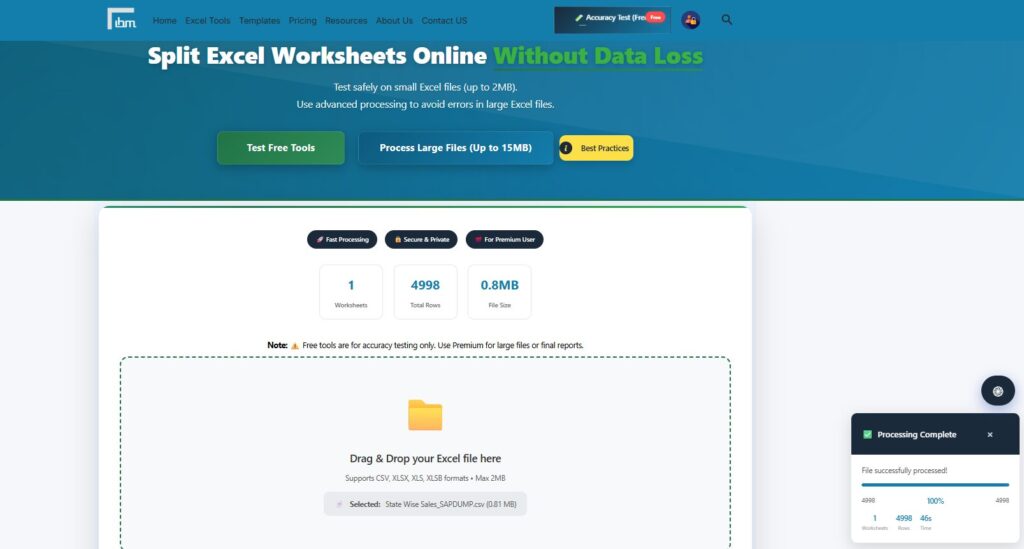
Drag and drop your file onto the upload area, or click Browse Files to select it from your computer. The tool accepts XLSX, XLS, XLSB, and CSV formats. Free version supports files up to 2MB. Once uploaded, the tool instantly reads your file and shows you the total number of worksheets and total rows detected – right on the dashboard.
Step 2 – Select the Column to Split By
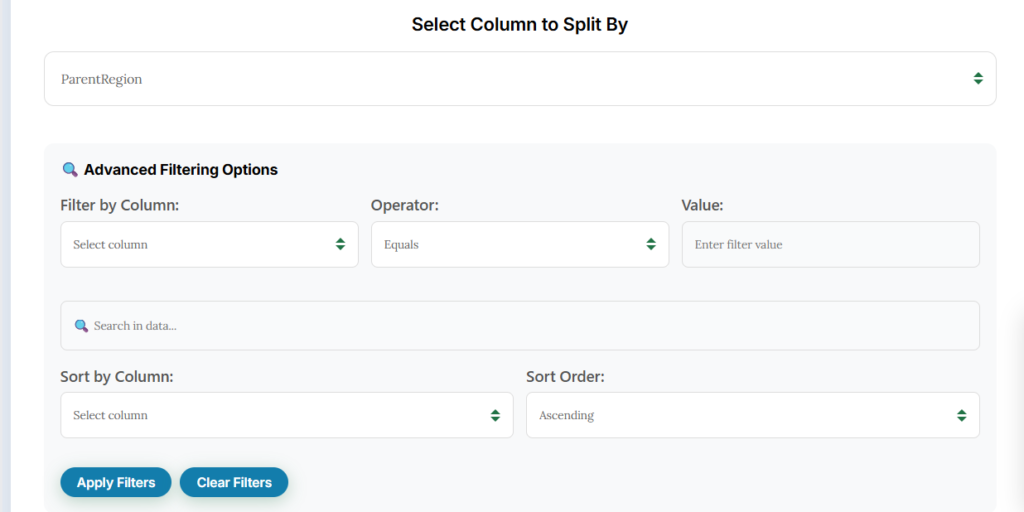
After your file loads, all column names from your worksheet appear in a dropdown. Select the column whose unique values will determine how the data gets divided. For example, if you select the Department column, the tool will create one sheet for each unique department value in your data – automatically, with no manual effort.
Step 3 – Apply Advanced Filtering Options (Optional)
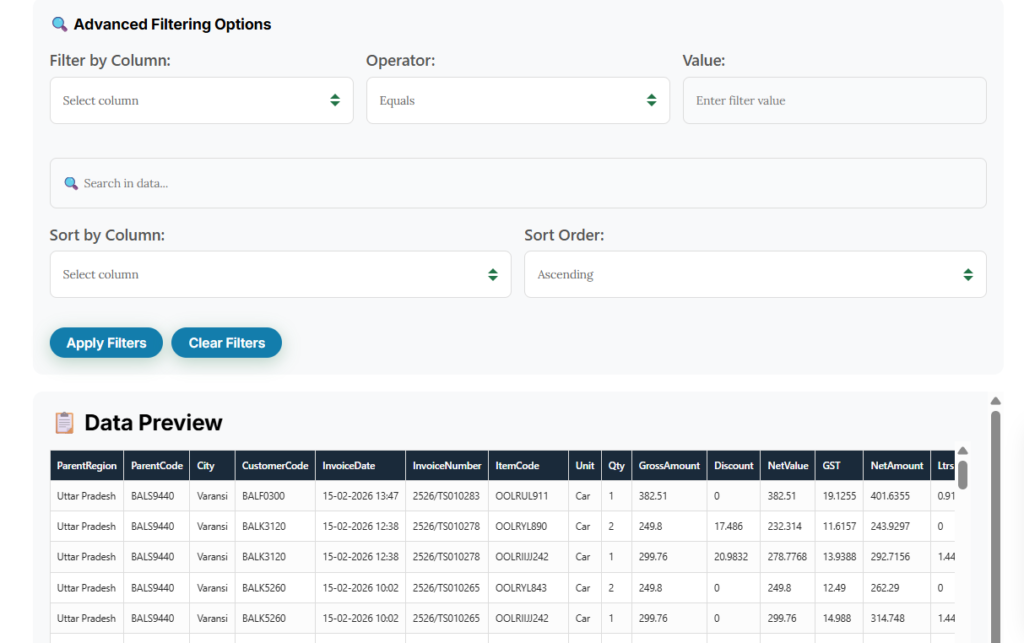
This is where the tool becomes significantly more powerful than basic splitters. Before splitting, you can apply precise filters to control which rows get included:
- Filter by Column: Select any column in your data to apply a filter condition
- Operator: Choose from Equals, Contains, Starts With, Ends With, Greater Than, Less Than, Not Equals, or Between
- Value: Enter the specific value to filter by
- Sort by Column: Choose which column to sort the output by, in Ascending or Descending order
- Data Preview: See your uploaded data columns at a glance before splitting, so you can confirm your selections are correct
These options mean you can do things like – split only rows where Sales > 50000, or split only records from Q1, or exclude a specific region – all without touching the original file.
Step 4 – Split and Download
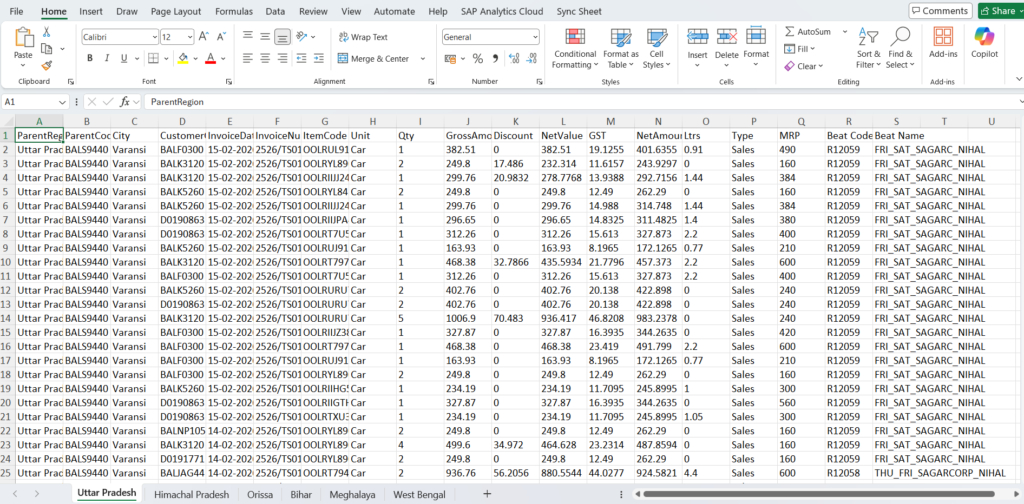
Click the Split Worksheets button. The tool processes your file and creates separate sheets for each unique value in your selected column. Your output Excel file downloads instantly – one workbook with all split sheets organized and ready to share.
Real Use Cases – Who Needs to Split Excel by Column Value
Sales Teams – Split by Region or Sales Representative
A sales manager has a master sheet with 2,000 rows covering all transactions across North, South, East, and West regions. Every month-end, the manager needs to send each regional head only their own data. Manually filtering and copying takes 3 hours. With the split tool, the same task is done in under 2 minutes – select Region column, click Split, done.
HR Departments – Split by Department or Location
HR teams frequently manage payroll data, attendance records, or performance review sheets that cover all employees in a single file. Splitting by Department or Branch Location and sharing individual sheets with department heads is a common monthly task that the tool automates completely.
Accountants – Split by Client or Cost Center
Accounting professionals working with consolidated ledgers or expense reports need to break data down by Client, Cost Center, or Project Code before reporting. Doing this manually – especially across 30 or 40 unique values – is time-consuming and error-prone. The column-split feature eliminates this entirely.
Operations and Logistics – Split by Product Category or Warehouse
Operations teams managing inventory or order data across multiple warehouses or product lines use the split tool to generate category-specific reports without writing a single line of code or installing any add-in.
Pro Tip – Apply Formatting to All Sheets at Once After Splitting
Once you download your split Excel file, you can format all sheets at the same time without touching each sheet individually. Here is how: hold Shift + Ctrl and click on the worksheet tabs to select all sheets, then make your formatting changes – font, size, header style, column width – on any one sheet. Excel applies those changes to all selected sheets simultaneously.
This means you can produce professionally formatted, individually split reports in one workflow – no repetition, no extra time.
Free vs Premium – Which Version Do You Need?
The free version handles files up to 2MB and gives you full access to all splitting and filtering features – column selection, filtering operators, sort options, and data preview. This is enough for testing accuracy and processing smaller datasets.
If your files regularly exceed 2MB – large payroll sheets, quarterly sales data, inventory reports – the Premium plan at ₹299 per month or ₹2,999 per year gives you:
- File processing up to 15MB
- Access to all 20 premium Excel tools – Data Cleaner, File Merger, Data Validator, Number to Words Converter, and more
- Advanced processing with no daily limits
- 7-Day Money Back Guarantee – no risk
Frequently Asked Questions
Upload your Excel file to the free Excel Worksheet Split Tool at ibusinessmotivation.com, select the column by which you want to split, apply any optional filters, and click Split Worksheets. Your file downloads instantly with all split sheets inside one Excel workbook. No signup, no software, no VBA required.
Yes. Our browser-based tool splits Excel data by column value without any VBA macro or formula. You simply select the column, and the tool automatically creates one sheet per unique value in that column. No coding, no macros, no Excel add-in installation needed.
The tool supports XLSX, XLS, XLSB, and CSV formats. These cover all major Excel file types used in professional environments. The output is always delivered as a downloadable Excel file with multiple worksheets.
Upload your file, go to the column selector dropdown, choose the column that contains the categories you want to split by – such as Region, Department, or Product Type. The tool reads all unique values in that column and creates one separate sheet for each value, with the corresponding rows included. Click Split Worksheets and download your result.
Yes. The Advanced Filtering Options section lets you filter by any column using operators like Equals, Contains, Greater Than, Less Than, and Between – before the split happens. This means you can split only specific rows that meet your criteria, not the entire dataset.
Your files are processed entirely within your browser session. No data is uploaded to or stored on any external server. Once you close the tab, all data is cleared. Your spreadsheets remain completely private and secure.
Conclusion
Splitting a large Excel file into multiple sheets by column value is one of the most common tasks in data management – and one of the most tedious when done manually or with VBA. The right tool turns a 3-hour task into a 2-minute task, with better accuracy and no technical skill required.
Our free Excel Worksheet Split Tool gives you column-based splitting, advanced filtering by multiple operators, sort control, and a live data preview – all in a clean, browser-based interface that works instantly on any device.
Try it free today: https://ibusinessmotivation.com/excel-worksheet-split-free/
Need to process larger files or unlock all 20 premium tools? View Premium Plans – starting at ₹299/month.