


You have twelve monthly sales reports. Each one is a separate Excel file. Your manager needs a single consolidated sheet by end of day. What do you do?
Most professionals open each file one by one, copy the data, paste it into a master sheet, fix the formatting, handle duplicate headers, and repeat – twelve times. The entire process takes 45 minutes and still produces errors because one file had a different column order.
There is a faster way. Our free online Excel File Merger combines multiple Excel files into one in under 60 seconds – directly in your browser, with zero manual work, no VBA code, and no software to install.
Why Merging Excel Files Manually Always Causes Problems
Every professional who works with Excel data has gone through this. You have clean data in separate files and you need it all in one place. The problem is that no two files are ever perfectly identical in structure – column orders differ, headers are named slightly differently, some sheets have extra blank rows at the top, and formatting never matches.
The standard workarounds each come with their own problems:
- Copy and paste manually: Works for two or three files but becomes impossible at scale. Errors creep in when data is 500+ rows per file
- VBA macros: Require coding knowledge, break when Excel versions differ, and cannot be reused across different column structures without editing
- Power Query: Powerful but has a steep learning curve, requires setting up data connections, and is not available in older Excel versions
- Desktop software: Requires download, installation, admin permissions, and often costs money – just for a task you need done once a month
What Most Online Excel Merger Tools Get Wrong
Most free online Excel merger tools available today are basic file combiners. They take your files and stack the data without any intelligence. If File 1 has a header row and File 2 also has a header row, the tool blindly includes both – leaving you with duplicate headers scattered through your merged data.
They also lack flexibility. You get one output option – everything merged into a single sheet – regardless of whether that is what you actually need. If your files have different structures, there is no smart detection, no per-file sheet option, and no way to control the output format.
Our tool is built differently. It gives you full control over how the merge happens – before you click the Merge button.
How to Merge Multiple Excel Files Into One – Step by Step
Open the free Excel File Merger tool in your browser. No account, no login, no installation needed.
Step 1 – Upload Your Excel Files
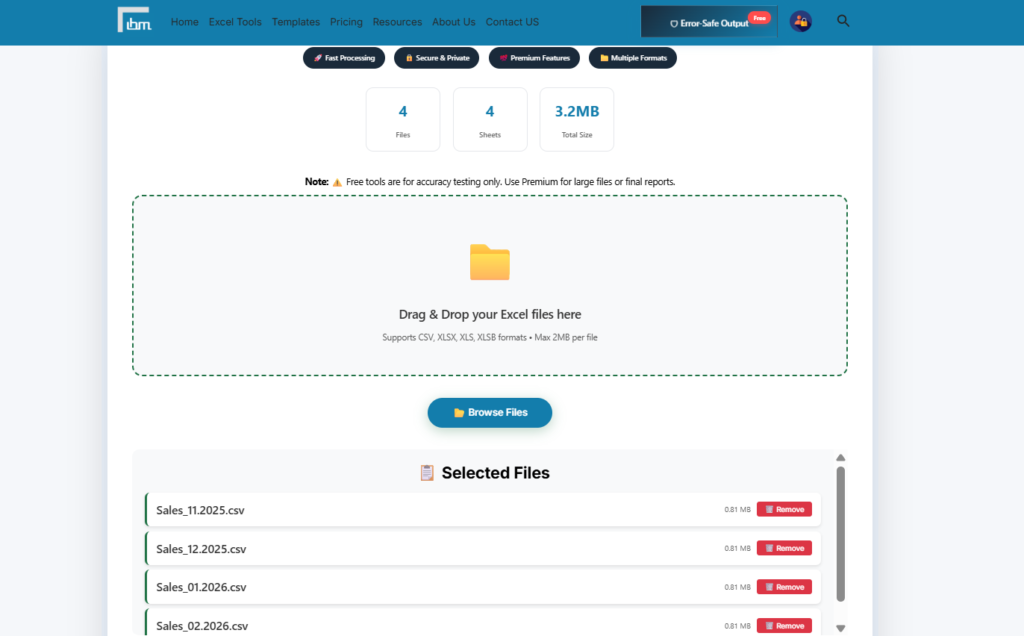
Drag and drop all the Excel files you want to merge onto the upload area, or click Browse Files to select them from your computer. The tool accepts XLSX, XLS, XLSB, and CSV formats. The free version supports files up to 2MB each. As files are uploaded, the tool shows you the total file count, total number of sheets detected across all files, and the combined file size – so you always know exactly what you are working with before merging.
Step 2 – Choose Your Merge Method
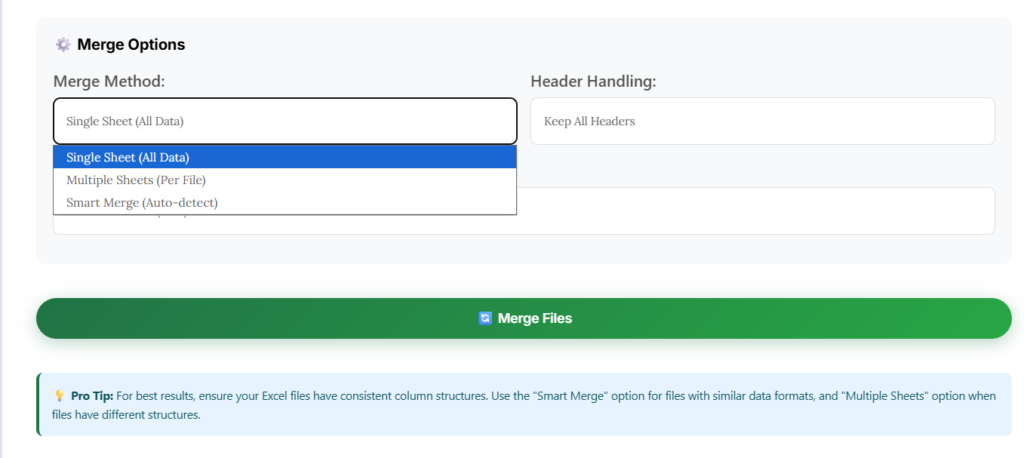
This is where our tool is different from every basic online merger. You have three merge methods to choose from:
- Single Sheet (All Data): All data from all files is combined into one single worksheet. Best for files that have the same column structure and you want one flat, consolidated dataset
- Multiple Sheets (Per File): Each uploaded file becomes its own separate sheet inside the merged workbook. Best for files with different structures that you want to keep organized but in one place
- Smart Merge (Auto-detect): The tool automatically detects whether files have similar or different structures and applies the most logical merge method. Best for mixed file sets where you are unsure which method to use
Step 3 – Set Header Handling
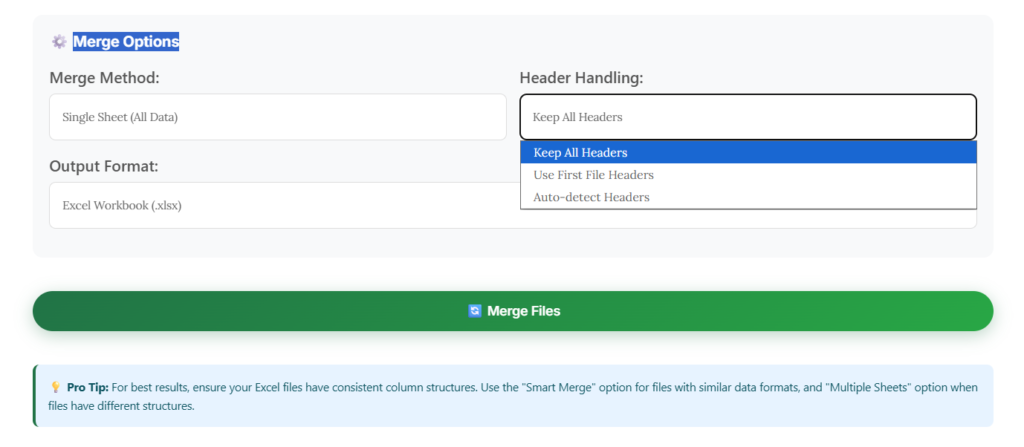
This single setting prevents the most common merging mistake – duplicate headers. Choose from three options:
- Keep All Headers: Every file’s header row is included as-is. Use this when files have different column structures
- Use First File Headers: Only the header from the first file is kept. All subsequent files have their header row removed. Use this when all files have identical column structures
- Auto-detect Headers: The tool scans each file and automatically handles headers based on what it finds. Best when files come from different sources and you cannot verify consistency
Step 4 – Select Output Format
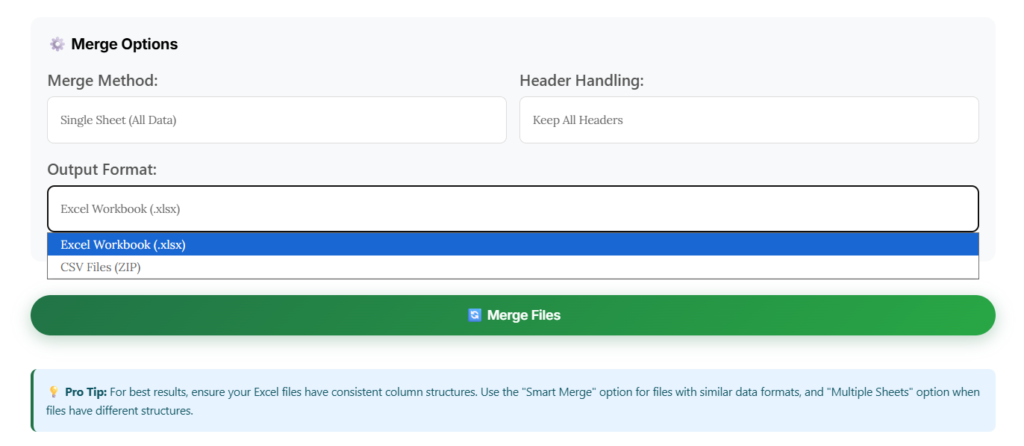
Choose whether you want the merged output as an Excel Workbook (.xlsx) for direct use in Excel or Google Sheets, or as a CSV ZIP file if you need individual CSV sheets for system imports, database uploads, or further automated processing.
Step 5 – Merge and Download
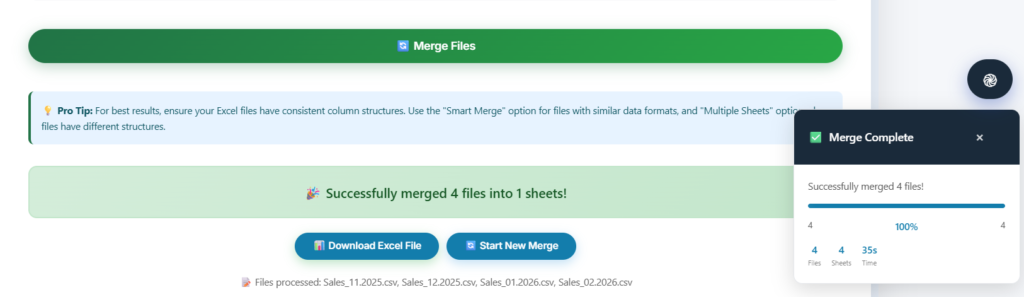
Click the Merge Files button. The tool processes all uploaded files instantly. Your merged file downloads directly to your computer – clean, formatted, ready to use. No waiting, no email links, no server delays.
Real Use Cases – Who Uses This Tool and Why
- HR Professionals: Merging monthly attendance sheets from different departments into one annual report. Each department sends a separate file – 12 files, 12 months – consolidated in one click
- Accountants: Combining weekly expense reports from multiple team members into a single monthly summary for submission. Multiple files, same column structure – Single Sheet merge with First File Headers selected
- Sales Operations: Consolidating regional sales data from North, South, East, and West zone files into one national dashboard-ready dataset
- Data Analysts: Combining CSV exports from different software tools – CRM data, billing data, support tickets – into one master file for analysis
- Small Business Owners: Merging daily transaction files into a weekly or monthly summary without needing to know any Excel formulas or coding
Free vs Premium – Which Plan Is Right for You?
The free version of the Excel File Merger handles files up to 2MB each – ideal for testing the tool, processing small monthly reports, or merging lightweight data files. All three merge methods, all header options, and both output formats are available in the free version.
If you work with large datasets – detailed HR records, comprehensive sales data, or high-volume transaction files – the Premium plan at ₹299 per month or ₹2,999 per year gives you:
- File size up to 15MB per file
- Access to all 20 premium Excel tools – Data Cleaner, Worksheet Splitter, Data Validator, CSV Converter, and more
- Advanced processing with no daily limits
- 7-Day Money Back Guarantee – full refund if the tool does not meet your needs
Frequently Asked Questions
Upload all your Excel files to the free Excel File Merger at ibusinessmotivation.com, select your merge method and header option, then click Merge Files. Your consolidated Excel file downloads in seconds. No VBA, no formula, no coding of any kind required.
Yes. Use the Multiple Sheets (Per File) merge method – each file becomes its own sheet inside the merged workbook while keeping its original structure intact. Alternatively, use Smart Merge and the tool will automatically detect the best approach based on your file structures.
In the Header Handling option, select Use First File Headers. The tool will keep only the header from your first file and automatically remove header rows from all subsequent files before merging. Your final output will have one clean header row at the top.
The tool supports XLSX, XLS, XLSB, and CSV formats. You can mix formats – for example, merge an XLSX file and two CSV files together – and download the result as a single Excel workbook or as a CSV ZIP depending on what you need.
Your files are processed entirely within your browser session. No data is uploaded to or stored on any external server. Once you close the browser tab, all file data is cleared. Your business data – whether it contains HR records, financial information, or sales figures – remains completely private and is never accessible to anyone else.
Yes. You can upload and merge as many files as needed in a single operation. The tool shows you the total file count and combined sheet count before you merge, so you always have full visibility over what you are combining.
Conclusion
Merging multiple Excel files into one should not take 45 minutes of manual copy-paste work. With the right tool, it is a task that takes under 60 seconds – regardless of how many files you have or how their column structures differ.
Our free Excel File Merger gives you intelligent merge options – Single Sheet, Multiple Sheets, Smart Merge – along with full header control and flexible output formats. All in a browser-based tool that requires zero installation and zero technical knowledge.
Try it free today: https://ibusinessmotivation.com/multiple-excel-file-merger-free/
Need to process larger files or access all 20 premium Excel tools? View Premium Plans – starting at ₹299/month.