

If you have been using Microsoft Excel for any amount of time, chances are you have heard at least one of these three names: VBA, Power Query, or Power Automate. Each one promises to save you time. Each one automates tasks. But they are not the same tool – they solve different problems, work in different environments, and require different skill levels to learn.
The confusion is completely understandable. All three live inside the Microsoft 365 ecosystem. All three can reduce manual work. And the internet is full of conflicting advice about which one to learn first.
This guide was written to end that confusion. By the time you finish reading, you will know exactly what each tool does, how they compare across every important dimension, which professionals benefit most from each one, and – most importantly – which tool you should start with based on your specific job role and goals.
Section 1: Understanding Each Tool – Plain English Definitions
Before comparing them, you need to understand what each tool actually is – not the marketing description, but the practical reality of how working professionals use them every day.
Excel VBA (Visual Basic for Applications)
VBA is a programming language built directly inside Microsoft Excel (and all other Office applications). It has been part of Excel since 1993. With VBA, you write small programs called Macros that automate tasks inside your Excel workbook – formatting reports, cleaning data, looping through thousands of rows, saving files, sending emails through Outlook, and much more.
VBA runs inside your Excel file. It does not require an internet connection, a cloud subscription, or any external service. It is self-contained, fast, and incredibly flexible. The trade-off is that it requires you to learn programming syntax.
- Lives inside: Excel Desktop (all versions from Excel 97 onwards)
- Requires: Learning Visual Basic programming syntax
- Best for: Complex Excel automation, report generation, data manipulation within workbooks
- File format: Must save workbook as .xlsm (macro-enabled)
Power Query (Get & Transform Data)
Power Query is a data transformation and connection tool built into Excel and Power BI. It was introduced in Excel 2016 and is available in all Excel versions that are part of Microsoft 365. Power Query allows you to import data from hundreds of sources – Excel files, CSV files, SQL databases, SharePoint, websites, and more – and then clean, reshape, and transform that data using a visual, step-by-step interface.
The most powerful aspect of Power Query is its Refresh button. Once you build your data transformation steps, you can refresh the entire process with a single click – even when new data arrives. No code required for most tasks. Power Query records your steps in a language called M (Power Query Formula Language), but you rarely need to write M code manually.
- Lives inside: Excel 2016+ and Microsoft 365 (Data tab > Get & Transform Data)
- Requires: No coding for basic use; M language for advanced custom steps
- Best for: Importing, cleaning, merging, and reshaping data from multiple sources
- Key advantage: One-click refresh when new data arrives – fully repeatable workflow
Power Automate (formerly Microsoft Flow)
Power Automate is a cloud-based workflow automation platform that is part of Microsoft 365. It allows you to build automated workflows – called Flows – that connect different apps and services. For example: when an email with an attachment arrives in Outlook, automatically save the attachment to SharePoint, extract the data from it, update a row in a Teams channel, and send a confirmation email – all without any human action.
Power Automate uses a completely visual, drag-and-drop interface. You select triggers (what starts the workflow) and actions (what happens next). No coding is required for most common automations. It connects to over 900 apps and services including Excel Online, SharePoint, Teams, Outlook, Salesforce, Google Sheets, Twitter, and hundreds more.
- Lives inside: Cloud – accessed via browser at flow.microsoft.com (requires Microsoft 365 subscription)
- Requires: No coding – fully visual drag-and-drop interface
- Best for: Automating workflows between multiple apps, cloud-based repeating tasks
- Key advantage: Connects 900+ apps; runs automatically in the cloud without human trigger
Section 2: The Complete Side-by-Side Comparison
Now that you understand what each tool does, here is a comprehensive comparison across every dimension that matters to a beginner making a decision about where to invest their learning time.
| Dimension | Excel VBA | Power Query | Power Automate |
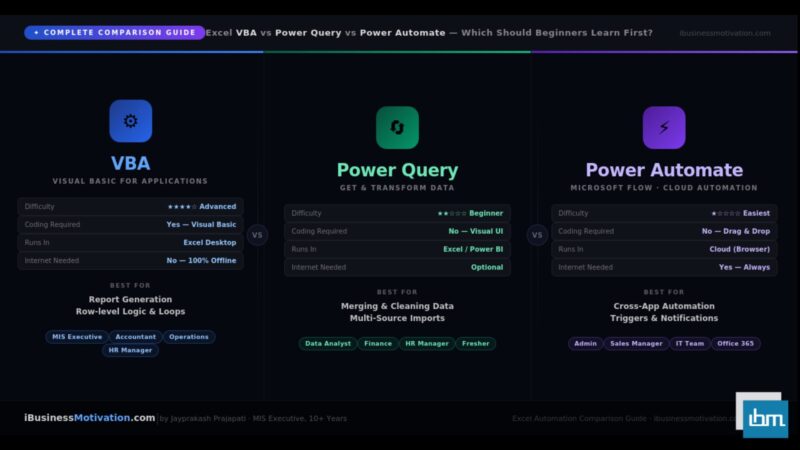
| Learning curve | Steep – requires programming knowledge | Gentle – mostly visual interface | Very gentle – drag-and-drop |
| Coding required | Yes – Visual Basic syntax | Rarely (M language for advanced only) | No – visual workflow builder |
| Where it runs | Inside Excel on your desktop | Inside Excel or Power BI | In the cloud (browser-based) |
| Internet required | No – works fully offline | No for local files; Yes for cloud sources | Yes – cloud platform only |
| Microsoft 365 required | No – works on Excel 2003+ | Partially – full features in M365 | Yes – M365 subscription needed |
| Data transformation | Yes – with code | Yes – primary purpose, no code needed | Basic – not its strength |
| Cross-app automation | Limited (Office apps only via COM) | No – Excel/Power BI only | Yes – 900+ app connectors |
| Scheduled/auto runs | Only if Excel is open | Manual refresh or schedule via Power BI | Yes – runs fully automatically |
| Works with cloud data | Limited | Yes – SharePoint, SQL, web, APIs | Yes – primary strength |
| Error handling | Advanced – full Try/Catch logic | Basic – query-level error steps | Yes – built-in condition blocks |
| Speed on large data | Fast for row-by-row operations | Very fast – columnar processing engine | Slower – limited to API rate limits |
| Free to use | Yes – included in all Excel versions | Yes – included in Excel 2016+ | Limited free tier; paid for advanced |
| Best output format | Modified Excel file, reports, emails | Clean table inside Excel or Power BI | Email, Teams message, database row |
| Reusability | Macro code reused across files | Query refreshes with new data | Flow runs on every trigger event |
| Collaboration/sharing | File must be shared manually | Shared via Power BI or SharePoint | Flows shared in team environments |
Section 3: What Each Tool Does Best – Real-World Use Cases
Knowing the features is one thing. Seeing how each tool applies to real professional tasks is what makes the difference clear. Here are the most common use cases for each tool, organized by job role.
Where Excel VBA Excels (Pun Intended)
| Job Role | VBA Automation Task |
| MIS Executive | Auto-generate weekly regional reports by splitting master data into separate sheets and emailing each region head |
| HR Manager | Loop through 5,000 employee rows, apply IF conditions, and auto-fill appraisal grades based on score ranges |
| Accountant | Read invoice data, apply GST calculations, format the sheet with color-coded rows, and print to PDF automatically |
| Operations Manager | Auto-highlight overdue orders (date < today), move completed rows to an archive sheet, and update a summary dashboard |
| Sales Analyst | Generate individual salesperson performance scorecards, save each as a separate workbook, and prepare for distribution |
Where Power Query Excels
| Job Role | Power Query Task |
| Data Analyst | Import 12 monthly CSV files, append them into one table, remove duplicates, rename columns, and refresh with one click each month |
| Finance Manager | Connect to SQL database, pull invoice data, merge with customer master file, calculate outstanding balances, refresh daily |
| HR Manager | Combine payroll data from 8 branch Excel files, standardize column formats, remove blank rows, load into a clean summary table |
| MIS Executive | Connect to SharePoint list, transform raw form responses into a clean structured table, refresh automatically after each submission |
| Retail Manager | Import product catalogue from supplier website or API, merge with internal stock data, flag low-stock items automatically |
Where Power Automate Excels
| Job Role | Power Automate Task |
| Office Admin | When a new email arrives with ‘Invoice’ in the subject, save the attachment to SharePoint and add a row to an Excel Online tracker |
| HR Manager | When a new employee form is submitted in Microsoft Forms, create a row in SharePoint, send a welcome email, and notify the manager on Teams |
| Sales Manager | When a deal is marked Closed-Won in Salesforce, automatically create an onboarding task in Planner and notify the account team on Teams |
| Operations Manager | Every day at 8 AM, pull the previous day’s orders from a database, summarize them, and email the summary to the operations team |
| IT Admin | When a new user is created in Azure AD, automatically assign Microsoft 365 licenses, create a Teams channel, and send onboarding email |
Section 4: Deep Dive – How Each Tool Handles a Common Task
To make the comparison even more concrete, let us take one real-world scenario and see how each of the three tools would solve it differently.
The Scenario: Every Monday morning, you receive 5 department Excel files via email. You need to merge them into one master file, clean the duplicates, split by region, and share each regional file with the relevant team head – all before 10 AM.
Solving It with VBA
VBA can handle this entirely inside Excel. You would write a macro that loops through a folder, opens each file, copies data to a master sheet, removes duplicates using a dictionary or Remove Duplicates method, then loops again to create region-specific sheets and save them as separate files. The entire process runs in under 2 minutes.
Sub MergeAndSplit()
    ' Step 1: Open each department file and copy data to master sheet
    Dim folderPath As String
    Dim fileName As String
    Dim masterWs As Worksheet
    Dim srcWb As Workbook
    Dim nextRow As Long

    folderPath = "C:\WeeklyReports\"
    Set masterWs = ThisWorkbook.Sheets("Master")
    nextRow = masterWs.Cells(masterWs.Rows.Count, 1).End(xlUp).Row + 1

    fileName = Dir(folderPath & "*.xlsx")
    Do While fileName <> ""
        Set srcWb = Workbooks.Open(folderPath & fileName)
        srcWb.Sheets(1).UsedRange.Offset(1).Copy _
            masterWs.Cells(nextRow, 1)
        nextRow = masterWs.Cells(masterWs.Rows.Count, 1).End(xlUp).Row + 1
        srcWb.Close False
        fileName = Dir()
    Loop

    ' Step 2: Remove duplicates on column A
    masterWs.UsedRange.RemoveDuplicates Columns:=1, Header:=xlYes
    MsgBox "Merge complete! Rows: " & masterWs.Cells(masterWs.Rows.Count,1).End(xlUp).Row - 1
End Sub
Verdict for VBA: Powerful and fully automated within Excel. Requires programming knowledge to write and maintain. No cloud dependency – runs entirely on your machine.
Solving It with Power Query
Power Query handles the merge and clean steps brilliantly – with zero code. You would use Get Data > From Folder to import all files, Power Query automatically appends them into one table, you remove duplicates with a right-click, standardize column names visually, and load the result. Every Monday, you just click Refresh and the entire merge-and-clean process re-runs instantly.
The limitation is the splitting and emailing steps – Power Query does not split by region into separate files, and it cannot send emails. For those steps, you would still need VBA or Power Automate.
Power Query Strength: The Refresh workflow is Power Query’s killer feature. Build the transformation once, and every subsequent Monday the entire merge-clean-load process runs in under 10 seconds with a single click – no code, no manual steps.
Solving It with Power Automate
Power Automate is best for the front and back end of this workflow – not the data transformation middle. You could build a Flow that: (1) monitors your Outlook inbox for emails with department file attachments, (2) automatically saves each attachment to a SharePoint folder, and (3) after processing, emails each regional file to the right team head. The actual merging and cleaning would still need Power Query or VBA.
This illustrates an important truth: these three tools are not competitors – they are complementary. The most powerful workflows use all three together.
Section 5: The Learning Investment – Time, Cost, and Difficulty
Before deciding which tool to learn, you need to understand what the actual learning investment looks like for each one.
| Factor | Excel VBA | Power Query | Power Automate |
| Time to first useful result | 2-3 days (basic macros) | 2-4 hours (first data import) | 1-2 hours (first simple flow) |
| Time to intermediate level | 3-6 months of practice | 2-4 weeks of practice | 2-3 weeks of practice |
| Time to advanced level | 1-2 years | 3-6 months | 3-6 months |
| Cost to learn | Free – many YouTube tutorials | Free – Microsoft docs + YouTube | Free tier available; premium connectors paid |
| Difficulty for non-coders | Hard – requires programming mindset | Easy – visual and intuitive | Easy – drag-and-drop |
| Difficulty for coders | Easy – familiar concepts | Medium – new M language for advanced | Easy – no code needed |
| Job market demand (India) | High – MIS, Finance, Operations | High – Data Analyst, BI roles | Growing – IT, Operations, Admin |
| Salary impact | Moderate to High | High (with Power BI combo) | Moderate (growing rapidly) |
Section 6: Which Tool Should YOU Learn First? – Decision Framework
This is the question this entire guide has been building toward. The answer is not the same for everyone. It depends on your job role, what problems you are trying to solve, and what tools your organization already uses.
Decision Guide by Job Role
| Your Job Role / Situation | Start With | Add Later |
| MIS Executive – weekly Excel reports | Excel VBA | Power Query for data merging |
| HR Manager – payroll, attendance, headcount | Power Query | VBA for complex conditional logic |
| Finance / Accounts – data reconciliation | Power Query | VBA for report generation |
| Data Analyst – cleaning and transforming data | Power Query | Power BI (not VBA) |
| Office Admin – email and approval workflows | Power Automate | Power Query for data steps |
| IT / System Admin – app integrations | Power Automate | Power Query for data |
| Sales Manager – CRM and pipeline reports | Power Automate | Power Query for dashboards |
| Small Business Owner – saving time on any task | Power Automate | Power Query as needed |
| Fresher / Student – wants to learn automation | Power Query | VBA second, Power Automate third |
| Excel power user – already knows formulas well | Excel VBA | Power Query for data transformation |
The Three-Question Decision Test
Answer these three questions to find your starting point:
- Does your task happen entirely inside an Excel file? If yes, start with VBA.
- Does your task involve importing, cleaning, or merging data from multiple sources? If yes, start with Power Query.
- Does your task involve multiple apps, automated triggers, or cloud services? If yes, start with Power Automate.
The Most Common Answer for Indian Professionals: Based on the profiles of MIS Executives, HR Managers, Accountants, and Operations professionals at mid-sized Indian companies: Start with Power Query for data transformation tasks, and learn basic VBA for report generation and file automation. Power Automate becomes valuable once your organization adopts Microsoft 365 cloud services.
Section 7: Can You Use All Three Together? – Yes, and Here Is How
The best Excel and Microsoft 365 automation professionals do not choose one tool – they use all three as a connected pipeline. Each tool handles the part of the workflow it is best suited for.
The Power Trio Workflow Model: Power Automate collects and routes data (emails, forms, triggers) → Power Query cleans, merges, and transforms data → VBA formats, reports, and distributes the final output. This three-layer approach handles virtually any business automation challenge.
Example: Full Automated Weekly Reporting Pipeline
- POWER AUTOMATE: Monitors Outlook inbox – when department files arrive on Friday evening, automatically saves them to a designated SharePoint folder.
- POWER QUERY: On Monday morning, reads all files from the SharePoint folder, merges them, removes duplicates, standardizes column names, and loads the clean data into the master Excel file – one click refresh.
- VBA MACRO: Reads the clean master data, applies business logic (region splits, conditional formatting, summary calculations), generates individual regional report files, and emails each file to the correct regional head via Outlook.
Total manual time for this three-stage pipeline after setup: approximately 8 minutes. Before automation: 4+ hours every Monday. This is the real power of combining all three tools strategically.
| Pipeline Stage | Tool Used | What It Does | Time Saved |
| Data Collection | Power Automate | Auto-saves email attachments to SharePoint | 15 minutes |
| Data Transformation | Power Query | Merges, cleans, and loads data on refresh | 65 minutes |
| Report Generation | Excel VBA | Formats, splits, and emails regional reports | 145 minutes |
| Total | All Three | Complete automated pipeline | 225 minutes/week |
Section 8: Limitations You Should Know Before Starting
Every tool has limitations that are rarely mentioned in beginner tutorials. Knowing these upfront will prevent frustration later.
VBA Limitations
- VBA code only works on Excel Desktop. It does not run in Excel Online or Excel for Mac (limited support).
- Macros require the file to be saved as .xlsm – standard .xlsx files strip all VBA code when saved.
- Sharing macros across teams requires sharing the workbook file. There is no centralized macro library.
- VBA is not supported in Power BI. If you move to BI reporting, your VBA investment does not transfer directly.
- Security: corporate IT environments sometimes disable macros by default – check with your IT team before building VBA-dependent workflows.
Important VBA Warning: Never run macros from files sent by unknown senders. Malicious VBA code can access your files, network, and email. Only run macros from trusted sources. Enable macro security settings via Developer > Macro Security.
Power Query Limitations
- Power Query is a data loading tool – it brings data into Excel, but does not send data out. For distribution and email, you still need VBA or Power Automate.
- The M language required for advanced custom transformations has a steep learning curve and limited beginner resources compared to VBA.
- Large datasets (millions of rows) can be slow to refresh unless you use Power BI or DirectQuery mode.
- Power Query in Excel does not automatically refresh on a schedule – you must click Refresh manually or set up refresh via Power BI.
Power Automate Limitations
- Power Automate requires a Microsoft 365 subscription. The free tier has limited connectors and run frequency.
- Advanced connectors (Salesforce, SAP, premium APIs) require a paid Power Automate plan, which can be costly for individuals.
- Flows run in the cloud, so they are dependent on internet connectivity and Microsoft server availability.
- Debugging failed flows can be complex – error messages are sometimes vague, especially for HTTP and API connectors.
- Power Automate does not manipulate Excel data row-by-row with the same precision as VBA. For complex data logic, it is not a replacement for VBA.
Section 9: Free Learning Resources for Each Tool
All three tools have excellent free learning resources available online. Here is where to start for each one.
| Tool | Best Free Resource | What to Learn First |
| Excel VBA | Microsoft Docs VBA Reference, Excel Macro Mastery (excelmacrmastery.com), YouTube: ExcelVBAisFun channel | Record a macro first, then learn Sub/End Sub, Dim, For loops, If statements |
| Power Query | Microsoft Learn Power Query documentation, Guy in a Cube (YouTube), How to Excel (YouTube) | Get Data from folder, Append Queries, Remove Duplicates, Rename Columns, Refresh |
| Power Automate | Microsoft Learn Power Automate paths (free), Power Automate YouTube channel by Microsoft | Automated Flow trigger (email), Add action (Save attachment), Condition blocks |
Recommended Learning Order for Absolute Beginners: Step 1: Learn Excel formulas well (VLOOKUP/XLOOKUP, IF, SUMIF, PIVOT). Step 2: Learn Power Query (2-3 weeks). Step 3: Learn basic VBA macros (1-2 months). Step 4: Explore Power Automate once your organization uses Microsoft 365 cloud services.
Frequently Asked Questions
For data transformation tasks specifically, Power Query is often a better choice than writing VBA for the same job. But VBA covers far more use cases than data transformation alone – report generation, cross-file automation, conditional formatting, email dispatch, and complex business logic are still areas where VBA has no equivalent in Power Query. The tools serve different primary purposes.
No. Power Automate is strongest at connecting applications and automating triggers and notifications. It is not designed for heavy data transformation (Power Query’s strength) or for manipulating Excel workbooks with complex cell-level logic (VBA’s strength). Think of Power Automate as the routing layer, not the processing engine.
No. Both Power Query and Power Automate are designed for use without any coding knowledge. Power Query uses a visual step-by-step interface for 95% of tasks. Power Automate uses a drag-and-drop flow builder. The M language in Power Query and expressions in Power Automate are only needed for advanced custom scenarios.
Based on current job market trends, Power Query combined with Power BI is the most in-demand skill combination for data analyst and MIS roles. VBA remains highly relevant for operations, finance, and HR automation roles. Power Automate is growing quickly in IT, admin, and digital transformation projects. For maximum employability, learning Power Query first and VBA second is the strongest combination for Indian professionals.
Yes. A single workbook can use Power Query to import and clean data, VBA to process and format that data, and Power Automate to handle the distribution and notification workflow around that workbook. This is actually the recommended approach for complex automation pipelines as described in Section 7.
Power Automate works with both, but its Excel connector (the one that reads and writes rows to Excel files) is designed for Excel Online files stored in SharePoint or OneDrive. For desktop Excel files, you would need to either move them to SharePoint or use VBA for the Excel-level manipulation while Power Automate handles the surrounding workflow.
For Data Analyst roles: Power Query + Power BI. For MIS Executive roles: Excel VBA + Power Query. For Operations or Admin roles: Power Automate + Excel. For Finance roles: Excel VBA + Power Query. Listing all three with specific examples of what you automated is even stronger – it signals that you understand the full Microsoft 365 automation ecosystem.
Final Summary: One-Page Comparison Reference
Use this table as a quick reference whenever you need to decide which tool fits a specific task.
| Task Type | Best Tool | Why |
| Loop through 10,000 rows with IF conditions | VBA | Row-by-row processing with complex logic |
| Merge 12 monthly CSV files into one table | Power Query | Built for appending and transforming multi-source data |
| Send email when a form is submitted | Power Automate | Event-triggered cloud automation |
| Auto-format a report and save as PDF | VBA | Full Excel object model control |
| Import data from SQL database into Excel | Power Query | Native database connector, refreshable |
| Move email attachments to SharePoint automatically | Power Automate | Cloud-to-cloud workflow between Office apps |
| Remove duplicates from 5 merged files | Power Query | Visual Remove Duplicates step, no code needed |
| Generate individual report per salesperson | VBA | Loop + save + email in one macro |
| Notify Teams when a SharePoint list is updated | Power Automate | SharePoint trigger + Teams action connector |
| Standardize messy column names across files | Power Query | Visual Rename Columns step, refreshable |
| Scheduled daily email summary to manager | Power Automate | Recurrence trigger + Outlook email action |
| Cross-referencing two Excel tables (like VLOOKUP) | Power Query | Merge Queries is faster and more stable than VBA loops |
Conclusion: The Right Tool for the Right Job
VBA, Power Query, and Power Automate are not rivals – they are teammates. Each one was built to solve a specific category of problem better than the others. The mistake most beginners make is trying to use one tool for everything, or spending months debating which one to learn instead of just starting.
The practical advice is simple: identify the most painful recurring task in your current job, figure out which tool is best suited to solve it based on this guide, and spend three to four weeks building that one automation. That first successful automation will make the path forward completely clear.
Once you have solved one problem well with one tool, expanding to the other tools becomes natural – because you already understand the mindset of automation. That mindset, more than any specific tool, is what separates the professionals who save 15 hours a week from those who are still doing everything manually.
Start Here: Not sure where to begin? Use ibusinessmotivation.com to start with free browser-based Excel tools (no coding required at all), then progress to Power Query, then VBA, then Power Automate as your skills and organizational needs grow.