

Imagine opening your Excel spreadsheet and instead of spending an hour building a formula, cleaning data, or creating charts – you simply type what you want in plain English and it gets done in seconds. That is not a future promise. That is Excel Copilot in 2026.
Microsoft Excel Copilot is the AI-powered assistant built directly into Microsoft 365 Excel. It understands natural language, generates complex formulas, analyses your data, creates PivotTables, builds charts, highlights insights, and even explains what your data means – all without requiring you to know a single formula or click through menus.
This guide is written specifically for beginners in 2026 who are hearing about Excel Copilot for the first time, or who have seen it in their ribbon and are not sure where to start. By the time you finish reading, you will know exactly what Copilot does, how to activate and use it, what prompts to write for the best results, and how to use it in real work situations every single day.
Section 1: What Is Excel Copilot? (Plain English Explanation)
Excel Copilot is an artificial intelligence assistant that lives inside your Microsoft 365 Excel application. It is powered by Microsoft’s integration of OpenAI technology into the Microsoft 365 suite – the same underlying technology that powers ChatGPT, but specifically trained and fine-tuned to work with Excel data, spreadsheets, and business workflows.
You interact with Copilot through a chat panel on the right side of your Excel window. You type a request in plain, everyday English – or Hindi, or any of the 25+ supported languages – and Copilot reads your spreadsheet, understands your request, and either performs the action directly or shows you exactly how to do it.
In 2026, Excel Copilot has been significantly expanded from its initial 2023 launch. It now handles more complex multi-step tasks, works more accurately with large datasets, supports richer chart customisation through prompts, and integrates with Microsoft 365 data from other apps like Teams, SharePoint, and OneDrive.
| What Copilot Can Do | Example Prompt |
| Write and explain Excel formulas | Write a formula to calculate commission at 8% for sales above 50,000 |
| Analyse and summarise data | Summarise the key trends in this sales data by region |
| Create PivotTables instantly | Create a PivotTable showing total revenue by product category |
| Build charts from data | Create a bar chart comparing Q1 vs Q2 sales by department |
| Clean and format data | Remove duplicate rows and highlight blank cells in column B |
| Sort and filter data | Show only rows where Region is North and Sales is above 10,000 |
| Explain formulas already in your sheet | What does the formula in cell D3 do? |
| Add conditional formatting | Highlight all cells in column C that are below the average in red |
| Generate insights automatically | What are the top 3 insights from this dataset? |
| Suggest next steps | What analysis should I do next on this sales report? |
Section 2: Requirements – What You Need to Use Excel Copilot in 2026
Before opening Copilot, it is important to understand exactly what is required. Not every Excel user has automatic access to Copilot. Here is the complete requirement list for 2026:
Microsoft 365 Subscription
Excel Copilot is not available in the standalone, one-time purchase versions of Excel (such as Excel 2021 or Excel 2019). It requires an active Microsoft 365 subscription. As of 2026, Copilot is included in the following plans:
| Microsoft 365 Plan | Copilot Included? | Notes |
| Microsoft 365 Personal | Yes (Copilot included from 2025) | For individual users |
| Microsoft 365 Family | Yes | Up to 6 users |
| Microsoft 365 Business Basic | Add-on required (Microsoft 365 Copilot licence) | Admin must enable |
| Microsoft 365 Business Standard | Add-on required | Most common business plan |
| Microsoft 365 Business Premium | Add-on required | Advanced security included |
| Microsoft 365 E3 / E5 (Enterprise) | Add-on required | Deployed by IT department |
| Microsoft 365 Copilot (standalone add-on) | Yes – this IS Copilot | Priced separately per user/month |
Important for Indian Business Users in 2026 If you are using Microsoft 365 through your organization, Copilot may need to be enabled by your IT administrator. Contact your IT department or system admin and ask them to assign a Microsoft 365 Copilot license to your account. Individual freelancers and small business owners can subscribe to Microsoft 365 Personal or Family which now includes Copilot features.
Internet Connection
Excel Copilot runs on Microsoft’s cloud infrastructure. A stable internet connection is required for Copilot to function. The AI processing happens on Microsoft’s servers, not on your local computer. This means Copilot will not work offline.
Latest Version of Excel
Copilot features are added and updated through the Microsoft 365 update channel. To ensure you have the latest Copilot capabilities available in 2026, keep Excel updated. Go to File > Account > Update Options > Update Now to check for the latest version.
Data Must Be in an Excel Table Format
This is the most commonly missed requirement for beginners. Copilot works best when your data is formatted as an official Excel Table (not just a range of cells). To convert your data to a table, select any cell in your data range and press Ctrl+T, then click OK. Once your data is in table format, Copilot can understand its structure, column names, and relationships far more accurately.
Every time you set up a new dataset you plan to analyse with Copilot, convert it to an Excel Table immediately using Ctrl+T. Give the table a meaningful name in the Table Design tab (e.g., ‘SalesData’ or ‘EmployeeRecords’). Copilot will reference the table by name and produce far more accurate results.
Section 3: How to Open and Use the Excel Copilot Panel
Once you have confirmed your subscription and updated Excel, opening Copilot is simple. Here is the complete step-by-step process:
Open Your Workbook and Format Data as a Table
- Open the Excel workbook with your data.
- Click any cell inside your data.
- Press Ctrl + T to convert it to an Excel Table.
- Confirm the header row checkbox is checked and click OK.
Open the Copilot Panel
- Click the Home tab in the Excel ribbon.
- Look for the Copilot button – it appears as a small sparkle / star icon labelled Copilot near the right side of the ribbon.
- Click the Copilot button. A chat panel slides open on the right side of your Excel window.
- If you do not see the Copilot button, go to File > Account and confirm your subscription includes Copilot. Then check for updates.
Start Typing Your First Prompt
In the chat panel, you will see a text field at the bottom with the placeholder text: ‘Ask me anything about your data.’ Click that field, type your request in plain English, and press Enter.
Copilot will read your table, process your request, and either show you a result, insert a formula, add a column, create a chart, or ask a clarifying question.
Understanding the Copilot Interface The Copilot panel has three main areas: (1) The conversation area at the top – where you see the history of your prompts and Copilot’s responses. (2) Suggested prompts – Copilot shows you 2-3 ready-made prompts based on your data to help you get started. (3) The text input box at the bottom – where you type your own custom prompts.
Section 4: Writing Effective Copilot Prompts – The Beginner’s Framework
The quality of what Copilot does for you depends almost entirely on how clearly you describe what you want. This is called prompt writing, and it is a skill worth developing. Here is a simple four-part framework that works for every Copilot prompt:
| Part | What to Include | Example |
| Action | What you want Copilot to DO | Create, Calculate, Show, Highlight, Explain, Summarise |
| Subject | What data or column to work with | column C, the Sales table, rows where Region = South |
| Condition | Any filter, rule, or threshold | where value is above 50,000 or blank cells only |
| Output | How you want the result | as a chart, in a new column, in bold red, as a summary |
You do not need to use all four parts every time – but the more specific you are, the better Copilot performs. Compare these two prompts:
💬 Vague Prompt (Weak Result)
You type: "Show me sales data"
✅ Copilot does: Copilot may just filter the table or show basic stats - not very useful.
💬 Specific Prompt (Strong Result)
You type: "Create a bar chart showing total sales by region for Q1 2026, with the highest bar highlighted in dark blue"
✅ Copilot does: Copilot creates a fully formatted bar chart with the exact specifications, saving 10+ minutes of manual work.Section 5: Formula Generation and Explanation – Copilot’s Most Powerful Feature
For most beginners, writing Excel formulas is the biggest barrier. Nested IF statements, XLOOKUP combinations, SUMIFS with multiple conditions – these take years to master. Copilot eliminates this barrier completely. You describe what you want to calculate in plain words, and Copilot writes the formula.
Generating Formulas from Plain English
💬 Commission Calculation
You type: "Write a formula to calculate 10% commission on sales in column C for any row where the Region in column B is North and the sales value is above 75,000. Show 0 for all other rows."
✅ Copilot does: =IF(AND([@Region]="North",[@Sales]>75000),[@Sales]*0.1,0) - inserted directly into a new column with the correct table reference syntax.
💬 Date-Based Formula
You type: "Create a formula that shows the number of days between the date in column A and today, and flags any row where the date is more than 30 days ago with the word OVERDUE."
✅ Copilot does: =IF((TODAY()-[@OrderDate])>30,"OVERDUE",TODAY()-[@OrderDate]) - written with correct date arithmetic and table references.💬 Lookup Formula
You type: "Write a formula in column F that looks up the Employee ID in column A from the HR Master sheet and returns the department name."
✅ Copilot does: =XLOOKUP([@EmployeeID],'HR Master'!A:A,'HR Master'!C:C,"Not Found") - using XLOOKUP with the correct cross-sheet reference.Explaining Existing Formulas
Copilot is equally useful for understanding formulas that already exist in your sheet – formulas inherited from a colleague, downloaded templates, or written months ago that you no longer remember.
💬 Formula Explanation
You type: "Explain what the formula in cell D5 does in simple language"
✅ Copilot does: Copilot reads the formula, identifies each component, and explains it step by step: 'This formula first checks if the value in B5 is greater than 10,000. If yes, it multiplies C5 by 1.15 to add a 15% bonus. If no, it returns the value in C5 unchanged.' This is like having a formula tutor on demand.
Debugging Formula Errors
When a formula shows an error like #REF!, #N/A, or #VALUE!, Copilot can diagnose the problem and suggest a fix. Simply click the cell with the error and type: ‘Why is this formula showing an error and how do I fix it?’ Copilot reads the formula, identifies the broken reference or wrong data type, and proposes a corrected version.
Section 6: Data Analysis and Insights – Let Copilot Think For You
One of the most impressive capabilities added to Excel Copilot in 2024 and expanded significantly in 2025-2026 is automatic data insight generation. Instead of you figuring out what patterns exist in your data, Copilot scans the entire table and surfaces the most important findings unprompted – or when you ask.
Getting Automatic Insights
With your Excel Table selected and the Copilot panel open, try these high-value analysis prompts:
- What are the top 3 insights from this dataset?
- Which product category has the highest growth rate compared to last quarter? Identify any unusual or outlier values in the sales column and explain why they stand out.
- Show me which region is underperforming based on this data.
- Summarise this entire dataset in 5 bullet points suitable for a management presentation.
- What trends do you see in the monthly revenue column over the past 12 months?
Creating PivotTables with One Prompt
Building a PivotTable manually requires knowing which fields to use as rows, columns, values, and filters – and then dragging them into the right positions. Copilot reduces this entire process to one sentence:
💬 PivotTable Creation
You type: "Create a PivotTable showing total revenue and average order value by product category and region, sorted by total revenue descending."
✅ Copilot does: Copilot creates a fully structured PivotTable on a new sheet with the correct fields in the correct positions, applies the sorting, and even suggests a chart to go with it.
Sorting, Filtering, and Segmenting Data
Rather than using Excel’s filter dropdowns and sort menus, you can describe the view you want in plain language:
💬 Complex Filter
You type: "Show me only the rows where Department is HR or Finance, the salary is above 40,000, and the joining date is after 1 January 2023. Sort results by salary from highest to lowest."
✅ Copilot does: Copilot applies the multi-condition filter and sorting in one step, displaying the result instantly. This would normally require several steps across the Data tab and Sort & Filter menus.
Section 7: Charts and Visualisation – Design-Ready Charts in Seconds
Chart creation in standard Excel requires selecting the right data range, choosing a chart type, adjusting axis labels, changing colours, adding titles, and formatting the legend – a process that can take 10-15 minutes even for experienced users. Copilot compresses this entire workflow into a single prompt.
Effective Chart Prompts for Beginners
| What You Want | Prompt to Type |
| Simple comparison chart | Create a bar chart comparing total sales by region for Q1 2026 |
| Trend over time | Create a line chart showing monthly revenue from January to December 2025 with a trend line |
| Part-to-whole breakdown | Create a pie chart showing the percentage contribution of each product to total revenue |
| Side-by-side period comparison | Create a clustered bar chart comparing Q1 vs Q2 sales by department |
| Distribution chart | Create a histogram showing the distribution of customer order values |
| Formatted dashboard-ready chart | Create a bar chart of top 10 customers by revenue. Use dark blue bars and white background. Add data labels on each bar. |
After Copilot generates a chart, you can continue the conversation to refine it. Type: ‘Change the colour scheme to green tones’ or ‘Add a data table below the chart’ or ‘Remove the legend and add data labels instead.’ Copilot treats chart creation as an ongoing conversation, not a one-shot command.
Section 8: Data Cleaning with Copilot – No More Manual Scrubbing
Data cleaning is one of the most time-consuming tasks in Excel work. Finding duplicates, fixing inconsistent formats, removing blank rows, standardising text – these tasks can consume hours every week. Copilot handles all of them through natural language instructions.
Essential Data Cleaning Prompts
💬 Remove Duplicates
You type: "Find and remove all duplicate rows in this table based on the Employee ID column. Keep the first occurrence."
✅ Copilot does: Copilot identifies duplicates using the specified column and removes them, reporting how many rows were deleted.
💬 Fix Formatting
You type: "The values in the Phone Number column have inconsistent formatting - some have dashes, some have spaces, some have country codes. Standardise all of them to the format +91-XXXXX-XXXXX."
✅ Copilot does: Copilot writes and applies a formula or transformation that normalises all phone numbers to the specified format.💬 Highlight Blanks
You type: "Highlight all blank cells in columns B, C, and D in yellow so they are easy to find and fill."
✅ Copilot does: Copilot applies conditional formatting rules to highlight every empty cell in the specified columns instantly.💬 Trim and Clean Text
You type: "Remove extra spaces from all cells in the Name column and convert all text to proper case (first letter of each word capitalised)."
✅ Copilot does: Copilot applies TRIM and PROPER functions across the column, cleaning all text values in one step.| Data Cleaning Task | Manual Time (Before Copilot) | With Copilot |
| Remove duplicate rows | 10-20 minutes for large datasets | Instant – one prompt |
| Standardise text formatting | 30+ minutes of formula writing | Under 1 minute |
| Highlight blank cells | 5 minutes through conditional formatting menus | Instant |
| Split full name into first and last | Formula writing + testing | One prompt, done |
| Convert text dates to real dates | Complex formula or manual re-entry | One prompt |
| Flag outliers / anomalies | Statistical formula + manual review | Copilot identifies and explains automatically |
Section 9: Real-World Use Cases – Copilot in Your Daily Work
Understanding features is one thing. Seeing exactly how to use them in your specific job role is what makes Copilot genuinely valuable. Here are detailed use cases for the most common professional profiles.
For HR Professionals
- Create a summary table showing average salary, headcount, and attrition rate by department from this employee data.
- Identify employees whose contract end date is within the next 60 days and highlight those rows in orange.
- Calculate tenure in years for each employee based on the joining date column and add it as a new column.
- Create a bar chart showing department-wise headcount sorted from largest to smallest.
For Sales & MIS Analysts
- Calculate month-over-month growth percentage for each region and add it as a new column.
- Which 5 sales representatives had the lowest performance this quarter? Show their names and totals.
- Create a PivotTable showing revenue by product and region for Q1 2026 with percentage of total.
- Flag all rows where the actual sales figure is more than 20% below the target and mark them as At Risk.
For Finance & Accounting
- Write a formula that applies GST at 18% only for rows where the Category column says ‘Goods’ and 12% for ‘Services’.
- Create a running total column that accumulates the Expense column month by month.
- Identify any transactions above 1,00,000 and list them separately with the vendor name and date.
- Summarise total income and expenses by month and show the net profit for each month.
For Operations & Supply Chain
- Highlight all rows where the stock quantity in column D is below the reorder level in column E.
- Calculate the average delivery time in days between the Order Date and Delivery Date columns.
- Which warehouse has the highest percentage of delayed shipments? Show the calculation.
- Create a chart showing inventory levels by product category for the last 6 months.
Section 10: What Excel Copilot Cannot Do – Honest Limitations in 2026
Every tool has boundaries. Understanding what Copilot cannot do helps you set realistic expectations and plan your work accordingly. Here is an honest assessment of Copilot’s current limitations as of 2026:
| Limitation | Current Reality | Workaround |
| Works offline | Not available without internet – cloud-dependent | Pre-analyse data while online and save results |
| Handles files > 2GB reliably | Performance degrades on very large files | Split large files or use Power Query for big data |
| Connects to external databases | Cannot directly query SQL or live ERP systems | Export data to Excel first, then use Copilot |
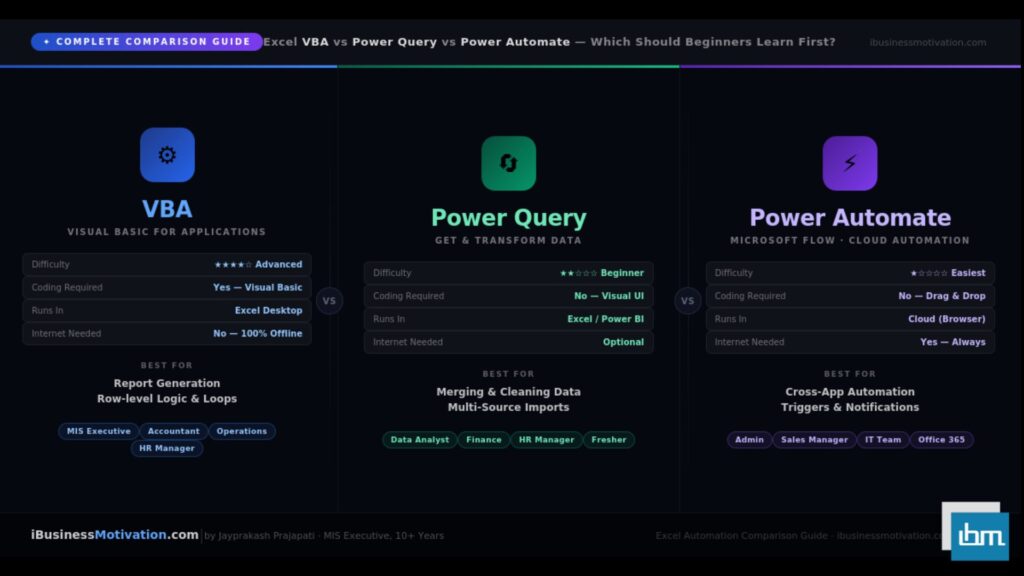
| Writes VBA Macros | Limited VBA generation – not reliable for complex macros | Use dedicated VBA resources for macro automation |
| Guarantees 100% formula accuracy | Occasionally produces incorrect formulas on complex logic | Always test generated formulas on sample data before applying to full dataset |
| Works in all Excel versions | Requires Microsoft 365 subscription – not in Excel 2021 or older | Upgrade to Microsoft 365 or use manual methods |
| Understands images or PDFs inside Excel | Works only with structured table data | Convert image/PDF data to Excel table format first |
| Multi-workbook analysis | Works best within one workbook at a time | Consolidate data into one workbook before using Copilot |
Always Verify Formula Results: Excel Copilot is a powerful assistant, not an infallible calculator. Always verify the formulas and results Copilot produces – especially for financial reports, payroll calculations, or data that will be shared externally. Test on 5-10 rows first, confirm the logic is correct, then apply to your full dataset.
Section 11: Copilot vs Traditional Excel Methods – When to Use Which
Copilot does not replace every Excel skill. It works best when combined with traditional Excel knowledge. Here is a practical guide to when to use Copilot versus traditional methods:
| Task | Best Tool | Why |
| Writing a complex nested formula for the first time | Copilot | Describes what you want, handles syntax automatically |
| Understanding a formula inherited from a colleague | Copilot | Explains in plain language, no guesswork |
| Automating a task that runs every week identically | VBA Macro | Macro runs offline, faster, zero prompt needed |
| Analysing a new dataset for patterns and insights | Copilot | AI scans entire table, surfaces non-obvious findings |
| Building a complex data transformation pipeline | Power Query | More reliable for large-scale, repeatable ETL workflows |
| Creating a quick chart for a presentation | Copilot | Faster than manual chart creation with formatting |
| Looking up values between two tables | XLOOKUP (or Copilot) | XLOOKUP is faster; use Copilot if you need help writing it |
| Generating a weekly MIS report from same format data | VBA + Copilot together | VBA automates the routine; Copilot adds new analysis |
| Explaining data trends to a non-technical audience | Copilot | Generates plain-English summaries and bullet points |
Section 12: 10 Pro Tips for Getting the Best Results from Excel Copilot
- Always convert data to an Excel Table first (Ctrl+T). Copilot performs 40-60% better on structured tables than on plain ranges. Give the table a meaningful name.
- Be specific about column names in your prompts. Instead of ‘the revenue column’, type ‘the Revenue column’ – using the exact header name reduces misinterpretation significantly.
- Use follow-up prompts to refine. If Copilot’s first response is close but not perfect, do not retype the whole prompt. Just type: ‘Change the chart colour to blue’ or ‘Also include the average line’ to refine the output.
- Ask Copilot to explain its own output. After any formula is generated, type ‘Explain this formula step by step’ to understand what was created before accepting it.
- Use Copilot for presentation summaries. At the end of your analysis, prompt: ‘Write a 5-point executive summary of this data suitable for a board presentation.’ This saves 30+ minutes of writing.
- Test formulas on small data before full application. Apply Copilot-generated formulas to 5-10 rows first. Confirm the logic, then expand to the full table.
- Save your best prompts in a text file. When you find a prompt that works perfectly for a recurring task, save it. Next week you can paste it directly rather than rewriting from scratch.
- Combine Copilot with keyboard shortcuts. Use Ctrl+T for tables, Ctrl+Z to undo any Copilot action you do not like, and F2 to inspect formulas Copilot inserts.
- Use Copilot to create documentation. Prompt: ‘Create a summary in a new sheet explaining what each column in this table represents and what formulas are used.’ Excellent for handover documents.
- Explore suggested prompts. Every time you open Copilot, it shows 2-3 suggested prompts based on your current data. Click these to discover analysis options you might not have thought of.
Frequently Asked Questions – Excel Copilot 2026
Copilot is included in Microsoft 365 Personal and Microsoft 365 Family subscriptions as of 2025-2026. Business and enterprise users typically need a separate Microsoft 365 Copilot add-on licence. Check your current plan at account.microsoft.com to see what is included.
Yes. Excel for the Web (the browser-based version accessed through Microsoft 365 online) supports Copilot. The features are slightly more limited than the full desktop application, but the core capabilities – formula generation, data analysis, chart creation – are all available.
No. When you use Excel Copilot, it only reads the data in your currently open workbook. Microsoft’s privacy architecture ensures that Copilot does not send your spreadsheet data to external servers in a way that shares it with other users. Enterprise users should refer to their organisation’s Microsoft 365 data governance policies for complete details.
Excel Copilot supports 25+ languages as of 2026, including English, Hindi, Spanish, French, German, Japanese, Chinese (Simplified and Traditional), Portuguese, Arabic, and many more. You can type prompts in your preferred language and Copilot will respond in the same language.
Copilot works most reliably with the table on the active sheet. However, when writing formulas, you can reference other sheets and Copilot will include correct cross-sheet references. For multi-sheet analysis, open the conversation from each sheet separately or consolidate data first.
Not entirely. Copilot makes formula writing accessible to beginners and speeds up expert work. But understanding what a formula does – even at a basic level – helps you verify Copilot’s output, catch errors, and make adjustments. We recommend learning the most common functions (SUM, AVERAGE, IF, XLOOKUP, COUNTIF) as a foundation, then using Copilot for everything more complex.
ChatGPT can help you write Excel formulas and explain concepts, but it cannot see your actual data, directly insert formulas into your sheet, create charts, or interact with your live workbook. Excel Copilot is integrated directly into Excel, reads your actual table, and takes actions inside your spreadsheet – not just in a chat window.
As of 2026, Copilot’s Power Query integration is in active development. Basic assistance with Power Query steps is available through Copilot Labs. Full Power Pivot integration is limited. For complex data transformation and modelling workflows, manual Power Query and Power Pivot skills remain important.
Summary: Your Excel Copilot Learning Path for 2026
Excel Copilot is not a replacement for Excel skills – it is a force multiplier. The users who get the most value from Copilot in 2026 are the ones who combine a basic understanding of Excel with the ability to write clear, specific prompts. That combination turns an hour of manual work into 60 seconds of AI-assisted work.
| Week | What to Practice | Goal |
| Week 1 | Activate Copilot, convert data to tables, run your first 5 prompts | Comfort with the interface |
| Week 2 | Formula generation and explanation – write 10 formulas using Copilot | Eliminate formula fear |
| Week 3 | Data cleaning prompts, PivotTable creation, chart generation | Full data workflow with AI |
| Week 4 | Analysis and insight prompts, presentation summaries, advanced filtering | AI-powered reporting |
| Ongoing | Save your best prompts, teach your team, explore new Copilot feature updates | Become the Excel Copilot expert in your organisation |
The Excel users who invest time in learning Copilot properly in 2026 will have a measurable productivity advantage over those who do not. Report preparation that takes 4 hours can be done in under 30 minutes. Formula troubleshooting that takes an hour can be solved in 2 minutes. Data cleaning that consumes an entire morning can be done before your first cup of tea.
Start today. Open Excel, press Ctrl+T on your data, click the Copilot button, and type your first question. The best prompt to start with is always the simplest: ‘What insights can you find in this data?’ What Copilot shows you next may genuinely surprise you.
Free Excel Tools + Copilot Guides at ibusinessmotivation.com Visit ibusinessmotivation.com for free Excel productivity tools, step-by-step guides, and regular updates on Excel Copilot features as Microsoft continues to expand capabilities throughout 2026. Free tools include Multiple Excel File Merger, Excel Data Cleaner, and Excel Worksheet Split Tool – for workflows where you need browser-based automation without a Microsoft 365 subscription.