

You have a CSV file. You need it in Excel. Simple problem. But the moment you try to open a CSV in Excel directly, everything breaks. Dates turn into random numbers. Phone numbers lose their leading zeros. Special characters show as question marks. Columns that should be separate are crammed together into one.
Most online CSV to Excel converters give you one button – upload, convert, download. No delimiter control, no encoding option, no date format selection. You get the same broken output in XLSX format instead of CSV format.
Our free CSV to Excel Converter is built differently. It gives you full control over every conversion parameter – delimiter, encoding, date format, number formatting, and header detection – so your data comes out clean, correctly formatted, and ready to use the first time. No account. No software. No waiting.
Why CSV Files Break When You Open Them in Excel
CSV stands for Comma-Separated Values – but not every CSV uses a comma. Many CSV files exported from Indian software, ERP systems, or government portals use semicolons, tabs, or pipe characters as separators. When Excel cannot detect the correct delimiter, it dumps all data into a single column.
Here are the most common problems professionals face when converting CSV to Excel manually:
- Delimiter mismatch: Data from accounting or ERP software often uses semicolons instead of commas – Excel cannot split columns correctly.
- Date format errors: Indian date format DD/MM/YYYY gets misread as MM/DD/YYYY, turning valid dates into error values.
- Encoding problems: Files with Hindi, Gujarati, or other regional language characters show garbled symbols when encoding is not set correctly.
- Number formatting: Large numbers, phone numbers, and account numbers lose leading zeros or get converted to scientific notation.
- Missing headers: When Excel cannot detect whether the first row is a header, data shifts and the spreadsheet becomes unusable.
How to Convert CSV to Excel Online – Complete Step by Step Guide
Visit our free CSV to Excel Converter – no account creation, no email verification, no subscription required to get started. Here is exactly how it works:
Step 1 – Upload One or Multiple CSV Files.
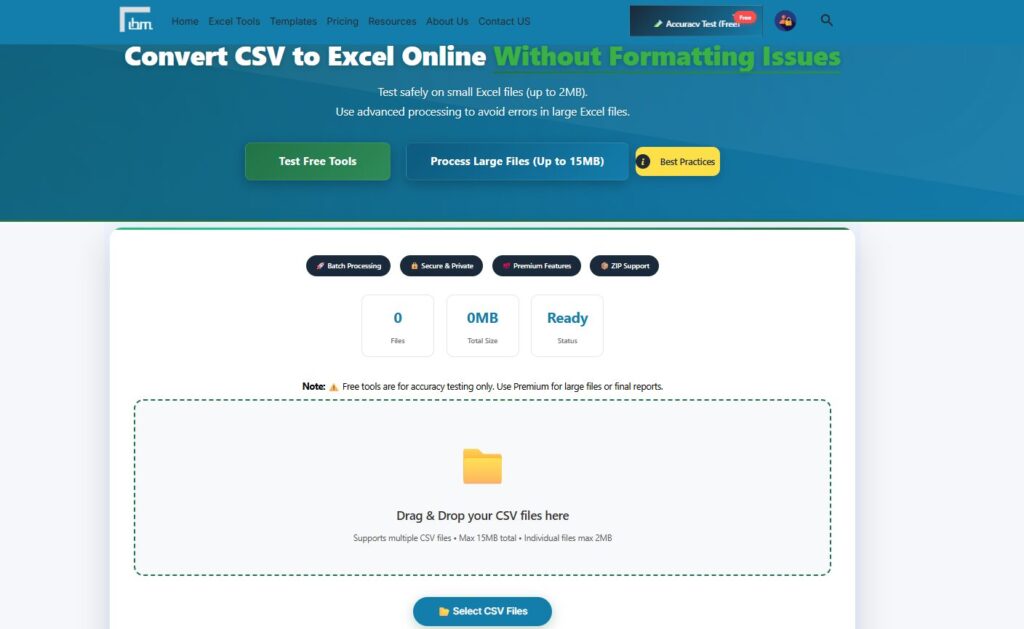
Drag and drop your CSV files directly onto the upload area, or click the Select CSV Files button to browse. The tool supports batch upload – you can convert multiple CSV files to Excel in a single operation. Free version supports individual files up to 2MB. Once uploaded, each file is listed with its name, size, and a status indicator so you always know which files are ready to convert.
Step 2 – Preview Your File Before Converting.
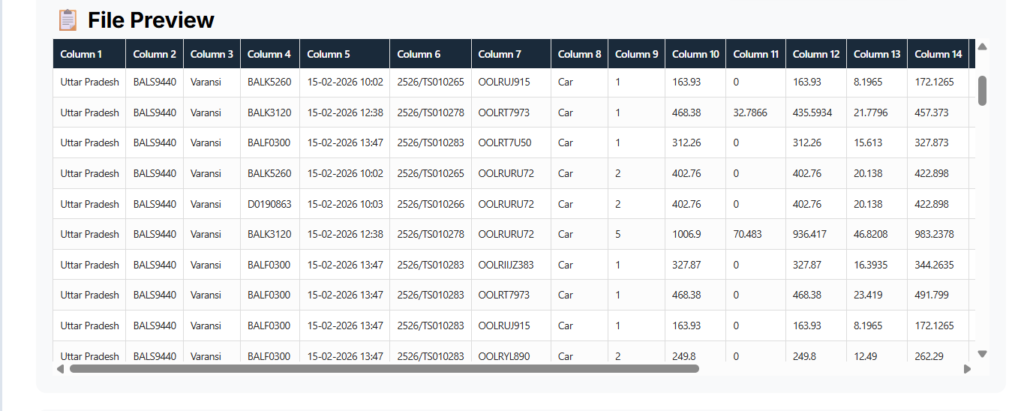
Before you touch any settings, the File Preview section shows you exactly what your CSV data looks like inside the tool. You can see your columns, check your data structure, and identify any obvious formatting issues. This step alone saves you from wasting time converting a file only to find the output is wrong.
Step 3 – Set Your Advanced Conversion Options.
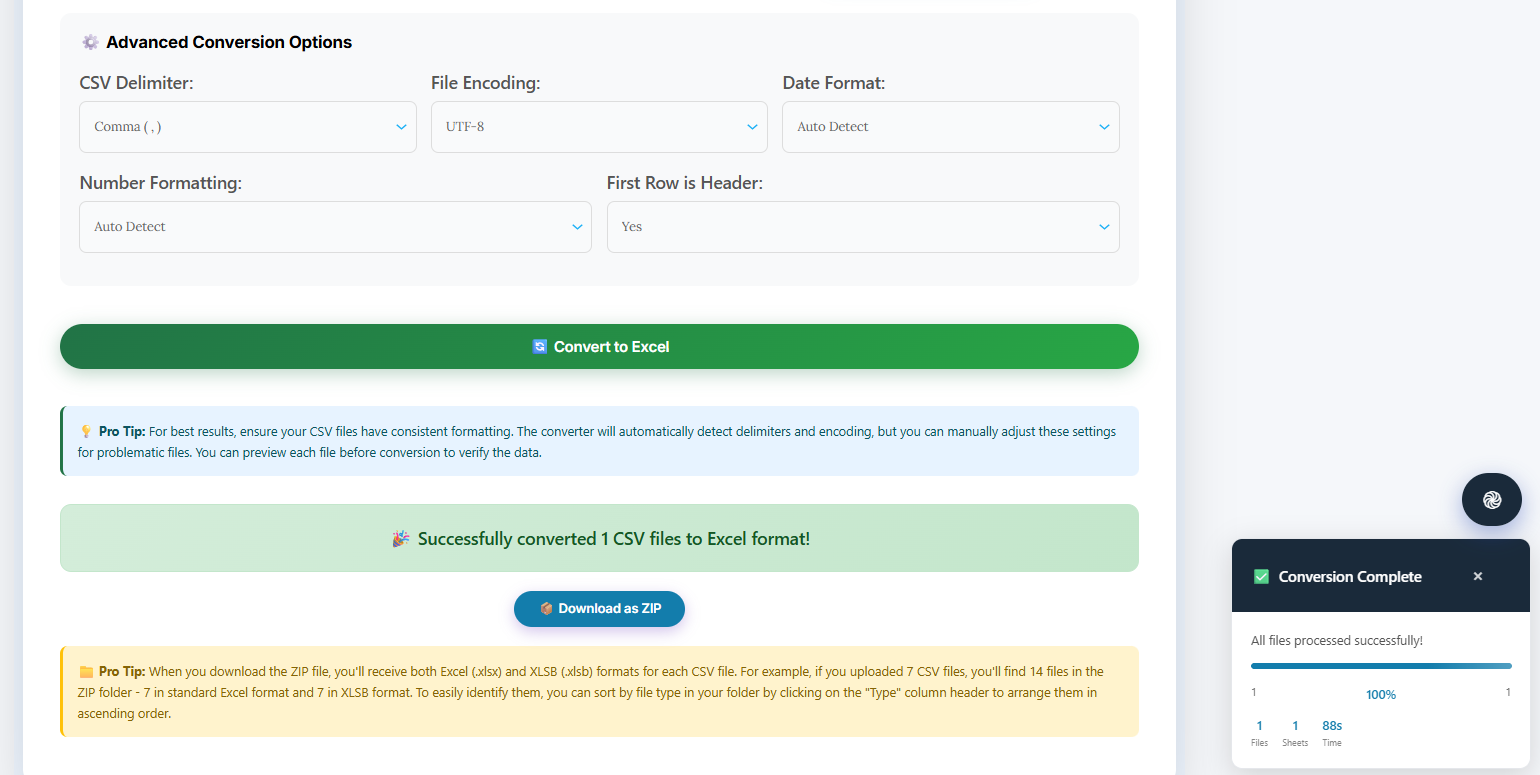
This is where our tool stands apart from every basic CSV converter online. You have full control over five critical conversion parameters:
| Setting | Options Available | Why It Matters |
| CSV Delimiter | Comma, Semicolon, Tab, Pipe, Auto Detect | Fixes single-column output problem |
| File Encoding | UTF-8, Windows-1252, ISO-8859-1, Auto | Fixes garbled characters |
| Date Format | Auto, DD/MM/YYYY, MM/DD/YYYY, YYYY-MM-DD | Fixes date errors for Indian data |
| Number Formatting | Auto, General, Text, Preserve Original | Fixes leading zero loss |
| First Row Header | Yes, No, Auto Detect | Fixes column shift issues |
Every setting has an Auto Detect option – so if you are unsure, the tool makes an intelligent choice based on your file structure.
Step 4 – Convert and Download Your Excel File.
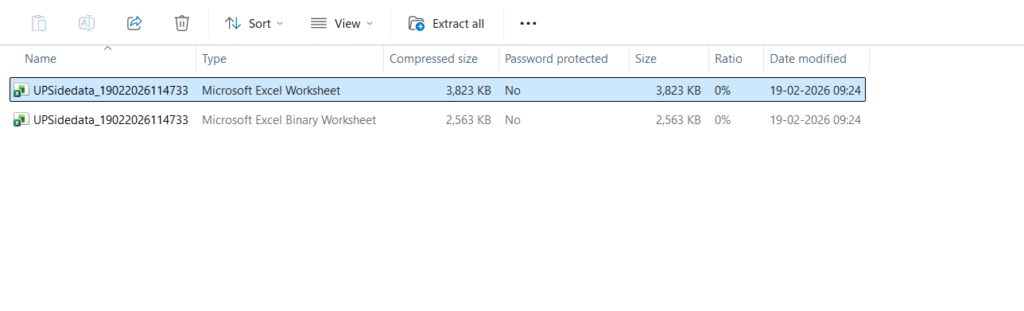
Click Convert to Excel. Processing happens instantly in your browser. Your converted XLSX file downloads immediately – clean, correctly formatted, and ready to open in any version of Microsoft Excel, Google Sheets, or LibreOffice. No email required, no waiting for a conversion link, no file size tricks.
Convert Multiple CSV Files to Excel at Once – Batch Conversion.
If you work with data exports, CRM reports, or accounting outputs, you likely receive not one CSV file but a folder full of them every week. Converting them one by one is slow and error-prone.
Our tool supports batch CSV to Excel conversion. Upload multiple CSV files in a single session, apply the same conversion settings to all files, and download all converted Excel files together. Each CSV becomes its own properly formatted XLSX sheet.
This is the feature most basic online converters do not offer. Tools like Convertio, Zamzar, and CloudConvert process files one at a time and require account creation or paid plans for batch conversion. Our tool gives you batch conversion free, with no login required.
Who Needs a CSV to Excel Converter – Real Professional Use Cases.
- HR Teams: Converting employee data exports from HRMS software into formatted Excel sheets for payroll processing and reporting
- Accountants: Importing bank statement CSV exports into Excel with correct date formatting and number preservation for reconciliation
- Data Analysts: Converting raw data pipeline outputs from Python, SQL, or API exports into structured Excel reports for stakeholders
- E-Commerce Operations: Converting order data, inventory exports, and shipping reports from platforms like Shopify, WooCommerce, and Amazon Seller into Excel
- Freelancers: Delivering client data in professionally formatted Excel files rather than raw CSV exports
Free vs Premium – What Changes When You Upgrade.
The free version of our CSV to Excel Converter supports individual files up to 2MB – enough for most small datasets, sample files, and quick conversions. All conversion settings including delimiter, encoding, date format, number formatting, and header detection are fully available in the free version.
When your data is larger – monthly payroll for 500 employees, full CRM exports, multi-year transaction histories – the Premium plan unlocks:
- Total batch upload up to 15MB across all files
- Access to all 20 premium Excel tools – Data Cleaner, Merger, Splitter, Validator, and more
- Advanced processing with error-safe output for business-critical data
- 7-Day Money Back Guarantee – full refund if the tool does not meet your requirements
Pricing starts at ₹299 per month or ₹2,999 per year – less than the cost of one hour of manual data formatting work.
Frequently Asked Questions
Go to ibusinessmotivation.com/csv-to-excel-converter-free – no account creation required. Upload your CSV file, adjust your conversion settings if needed, click Convert to Excel, and download your XLSX file instantly. The entire process takes under 60 seconds.
Yes. Our tool supports batch CSV to Excel conversion. You can upload multiple CSV files in a single session and convert them all together. This feature is available without any account or signup.
This happens when the delimiter in your CSV file does not match what Excel expects. Many CSV files from Indian ERP systems, banking software, and government portals use semicolons or tabs instead of commas. In our converter, select the correct delimiter manually or use Auto Detect – the tool will correctly split your data into separate columns.
This is a very common problem for Indian data files. The date format DD/MM/YYYY gets misinterpreted as MM/DD/YYYY by default Excel behavior. In our converter, select DD/MM/YYYY in the Date Format option before converting – your dates will be preserved correctly in the output Excel file.
Your files are processed entirely within your browser session. No data is uploaded to or stored on any external server. When you close the browser tab, all uploaded files and converted outputs are gone. Your data stays completely private.
Yes, completely. The tool runs in your web browser – Chrome, Firefox, Edge, or Safari. No Microsoft Excel installation required, no software download, no browser extension needed. It works on Windows, Mac, and mobile devices.
Conclusion
CSV to Excel conversion should be a one-minute task – not a troubleshooting session. The right tool gives you clean, correctly formatted Excel output the first time, without any signup friction or software installation.
Whether you are converting a single bank statement or a batch of weekly reports, our free CSV to Excel Converter handles every scenario – with full control over delimiters, encoding, date formats, and number formatting that basic converters simply do not offer.
Try the free converter now: https://ibusinessmotivation.com/csv-to-excel-converter-free/
Processing larger files or need access to all 20 premium Excel tools? View Premium Plans – from ₹299/month.