

Building a professional Excel dashboard used to mean hours of work – writing complex formulas, manually creating charts, formatting pivot tables, and figuring out which visualization best tells your data story. For experienced analysts, this was standard practice. For everyone else, it was a barrier that kept dashboards out of reach.
Microsoft Copilot for Excel has fundamentally changed that equation. Copilot is an AI assistant built directly into Microsoft 365 Excel that can analyze your data, suggest and build charts, write formulas, summarize trends, and create structured dashboard components – all through simple conversational prompts. You describe what you want in plain language. Copilot builds it.
This guide is for Excel users who already know their way around spreadsheets and want to take their dashboards to the next level using Copilot. You will learn how Copilot works in Excel, exactly what it can and cannot do, step-by-step dashboard building workflows, real Copilot prompt examples, and best practices from professional MIS dashboard design.
What Is Microsoft Copilot for Excel?
Microsoft Copilot for Excel is an AI-powered assistant integrated into the Microsoft 365 version of Excel. It was rolled out broadly in late 2023 and continues to receive new capabilities in 2024. Copilot uses large language model technology – the same class of AI that powers tools like ChatGPT – but it operates directly on your actual Excel data, inside your actual workbook.
When you open the Copilot panel in Excel, you see a chat interface on the right side of your screen. You type a request in plain English and Copilot responds by performing actions on your spreadsheet – creating formulas, building pivot tables, generating charts, highlighting patterns, or writing plain-language summaries of your data.
| Copilot Capability | What It Does | Dashboard Use Case |
| Formula generation | Writes complex Excel formulas from plain-language descriptions | KPI calculations, running totals, YoY comparisons |
| Chart creation | Suggests and inserts charts based on selected data | Sales trends, regional comparisons, performance bars |
| Data analysis | Identifies patterns, outliers, and trends in your data | Spot anomalies in revenue, flag underperforming regions |
| PivotTable building | Creates pivot tables from your data on request | Summarize monthly sales by product and region |
| Conditional formatting | Applies data bars, color scales, icon sets via prompt | Highlight top performers, flag below-target metrics |
| Natural language summaries | Writes plain-English summaries of data insights | Executive summary section of a management dashboard |
| Column suggestions | Recommends new calculated columns based on existing data | Profit margin %, growth rate, performance index |
Copilot Availability Microsoft Copilot for Excel requires a Microsoft 365 Personal, Family, Business, or Enterprise subscription with Copilot enabled. It is NOT available in Excel 2021, Excel 2019, or standalone Excel versions. If you have Microsoft 365 and do not see Copilot, check the Home tab for the Copilot button in the ribbon, or contact your IT administrator.
Setting Up Your Data for Copilot Dashboards
Copilot works best when your data is properly structured as an Excel Table. This is the single most important setup step before you start using Copilot for any dashboard work.
Convert Your Data to an Excel Table
A raw data range and an Excel Table look similar on screen, but they behave very differently with Copilot. Excel Tables give Copilot structured column headers, automatic data ranges, and the ability to reference data precisely. Without a Table, Copilot may misinterpret your data boundaries.
- Click anywhere inside your data range.
- Press Ctrl + T, or go to Insert > Table.
- Confirm the range is correct and check ‘My table has headers’.
- Click OK. Your data is now a structured Excel Table.
- Optional but recommended: name your table via the Table Design tab (e.g., SalesData, HRData).
Data Quality Rules for Best Copilot Results
| Rule | Why It Matters for Copilot | How to Fix |
| No merged cells in data | Merged cells break Copilot’s ability to read column structure | Unmerge all cells in the data range |
| Clean, consistent column headers | Copilot uses column names to understand your data | Rename headers clearly: ‘Sales_Amount’ not ‘col3’ |
| No blank rows inside data | Blank rows cause Copilot to misread the table boundary | Delete all blank rows inside the data |
| Dates in proper Excel date format | Copilot needs real dates for time-based analysis | Format date columns as Date, not as text strings |
| Numeric columns stored as numbers | Text-formatted numbers break chart and formula generation | Use VALUE() to convert text-numbers to real numbers |
| One concept per column | Copilot interprets each column as a single data dimension | Do not combine Region and City in one column; split them |
Opening Copilot and Your First Dashboard Prompt
Once your data is structured as a Table, you are ready to open Copilot and start building your dashboard.
- Open your workbook in Excel for Microsoft 365.
- Click anywhere inside your Excel Table.
- Go to the Home tab in the ribbon.
- Click the Copilot button (sparkle icon). The Copilot panel slides open on the right.
- In the chat box at the bottom of the panel, type your request in plain English.
- Press Enter. Copilot will analyze your data and respond.
Copilot Prompt – Your First Prompt
Analyze this sales data and show me the top 5 insights I should know about.Copilot will respond with a bulleted list of data insights – trends, outliers, top performers, and anomalies – generated by reading your actual table data. This is a great starting point before you begin building visualizations, because it tells you which parts of your data are worth highlighting in the dashboard.
Building a Sales Dashboard – Step by Step with Copilot
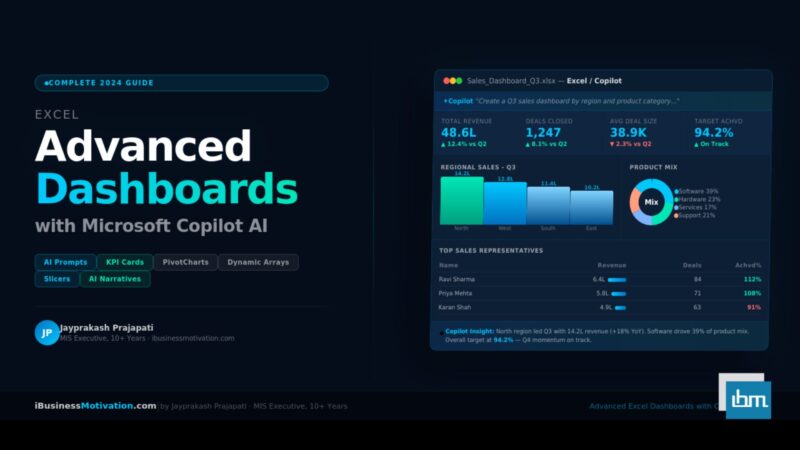
Let us walk through building a complete, professional sales dashboard from scratch using Copilot. We will use monthly sales data for a company with multiple products and four regions – North, South, East, West. The dashboard will include a KPI summary row, a monthly trend chart, regional performance comparison, product category breakdown, a top-10 leaderboard, and a Copilot-generated insights summary.
Step 1 – Create the Dashboard Sheet
- Insert a new sheet and name it ‘Dashboard’.
- Keep your source data on a separate sheet (e.g., ‘SalesData’).
- Hide gridlines: View > uncheck Gridlines for a clean background.
- Set a light grey (#F2F2F2) fill on the whole sheet for a professional look.
Step 2 – Generate KPI Cards with Copilot
KPI cards show high-level metrics in large, bold numbers at the top of the dashboard. Use these Copilot prompts to generate the underlying formulas:
Copilot Prompt – Total Revenue
Write a formula to calculate the total Sales Amount from the SalesData table.Copilot Prompt – Month-over-Month Growth
Write a formula that calculates the percentage change in Sales Amount between the current month and the previous month in the SalesData table.Copilot Prompt – Best Performing Region
Which region has the highest total sales in the SalesData table? Write a formula to return the region name.KPI Card Design Tip – Use a 3-column layout for KPI cards at the top of your dashboard. Each card should have: a metric name label (small, grey text), the metric value (large, bold, colored), and a trend indicator. Ask Copilot: ‘Write a formula that returns a green up arrow if this month’s sales are higher than last month, and a red down arrow if lower.
Step 3 – Monthly Trend Chart
Copilot Prompt – Monthly Sales Chart
Create a line chart showing total Sales Amount by month from the SalesData table. Add a trendline.Copilot Prompt – Dual-Metric Combo Chart
Create a combination chart showing monthly Sales Amount as bars and monthly Target Amount as a line, from the SalesData table.Step 4 – Regional Comparison Chart
Copilot Prompt – Regional Bar Chart
Create a clustered bar chart comparing total Sales Amount by Region from the SalesData table. Sort by highest to lowest.Step 5 – Product Category Pivot
Copilot Prompt – Product Pivot
Create a pivot table that shows total Sales Amount and total Units Sold grouped by Product Category from the SalesData table.Step 6 – Top 10 Leaderboard
Copilot Prompt – Top 10 Sales Reps
Show me the top 10 sales representatives ranked by total Sales Amount from the SalesData table. Include their region and number of deals closed.Step 7 – Copilot AI Insights Summary Block
This is one of the most powerful and unique dashboard elements that Copilot makes possible – a natural-language summary of your data that no formula or chart can produce on its own.
Copilot Prompt – Executive Insights Summary
Summarize the key findings from the SalesData table in 5 bullet points. Focus on which region performed best, which product category grew the most, and whether overall sales are trending up or down.Copy Copilot’s response into a text box on your dashboard. This becomes the ‘Executive Summary’ section – the part a manager reads first before looking at any charts. Update this section each reporting period by re-running the same prompt on fresh data.
Advanced Dashboard Techniques with Copilot
Dynamic Arrays for Auto-Updating Tables
Excel’s dynamic array functions – FILTER, SORT, UNIQUE, SEQUENCE – create results that automatically spill across cells and update when source data changes. Copilot can write these complex formulas instantly.
Copilot Prompt – Dynamic Filter Table
Write a FILTER formula that shows only rows from the SalesData table where Region is 'North' and Sales Amount is greater than 50000.Copilot Prompt – Top N Dynamic List
Write a formula using LARGE and INDEX-MATCH to dynamically show the top 5 sales amounts and their corresponding representative names from the SalesData table.Conditional Formatting for Visual Impact
Copilot Prompt – Heat Map Formatting
Apply a green-yellow-red color scale to the Sales Amount column where green is highest and red is lowest.Copilot Prompt – Target Achievement Icons
Add icon sets to the Achievement % column - green checkmark if above 100%, yellow warning if 80-100%, red X if below 80%.Slicers for Interactive Filtering
Slicers are clickable filter buttons that let dashboard users filter all connected charts and pivot tables with a single click – no dropdowns or formula editing required.
- Click inside your PivotTable.
- Go to PivotTable Analyze > Insert Slicer.
- Select: Region, Product Category, Month.
- Click OK. Position slicers in a row above your charts.
- To connect a slicer to multiple PivotTables: right-click slicer > Report Connections > check all tables.
Copilot Slicer Prompt: Ask Copilot: ‘What slicers should I add to a sales dashboard built from this data to make it most useful for regional managers?’ Copilot will recommend the most useful filter dimensions based on your actual column names.
Automated Narrative: The AI Story Layer
The most advanced capability Copilot brings to dashboards is the ability to generate narrative text that interprets your data and communicates it in plain language. This story layer is what separates a data dashboard from a true business intelligence tool.
Copilot Prompt – Variance Analysis Narrative
Compare this month's sales figures to last month's for each region. Write a 3-sentence summary explaining what changed and why it might have happened.Copilot Prompt – Forecast Commentary
Based on the sales trend over the last 6 months in this table, write a short paragraph forecasting whether Q4 sales are likely to exceed Q3.15 Power Prompts for Excel Dashboard Building
| Category | Copilot Prompt | What It Produces |
| Data Insight | What are the top 3 trends in this data? | Plain-language trend bullets |
| Data Insight | Find any outliers or unusual values in the Sales Amount column. | Flagged anomaly list with values |
| Formula | Write a SUMIFS formula for North region sales in Q3. | Ready-to-insert formula |
| Formula | Calculate a 3-month rolling average for monthly revenue. | Rolling average formula |
| Formula | What formula shows percentage of target achieved for each row? | Achievement % formula |
| Chart | Create a waterfall chart showing monthly revenue build-up. | Waterfall chart inserted |
| Chart | Build a bar chart comparing all 4 regions side by side. | Comparison chart layout |
| Chart | Add data labels showing percentage of total to this pie chart. | Formatted pie chart |
| Pivot | Summarize total sales by product category and region. | PivotTable with full breakdown |
| Pivot | Group the date column by Quarter and Year in a pivot table. | Quarterly grouped pivot |
| Formatting | Highlight all rows where sales are below the monthly average. | Conditional formatting applied |
| Formatting | Add data bars to the Units Sold column. | Data bar formatting applied |
| Analysis | Which product category has the highest profit margin on average? | Ranked analysis with values |
| Analysis | Is there a correlation between Units Sold and Customer Rating? | Correlation insight + interpretation |
| Narrative | Write a 5-line executive summary of this month vs last month. | Plain-English summary paragraph |
Copilot vs Manual Dashboard Building – Time Comparison
| Dashboard Component | Manual Time (Expert User) | With Copilot | Time Saved |
| KPI formulas (6 metrics) | 25 minutes | 6 minutes | 76% |
| Monthly trend chart | 15 minutes | 3 minutes | 80% |
| Regional comparison chart | 12 minutes | 2 minutes | 83% |
| Product pivot table + chart | 20 minutes | 4 minutes | 80% |
| Top 10 leaderboard | 18 minutes | 3 minutes | 83% |
| Conditional formatting | 10 minutes | 2 minutes | 80% |
| Executive insights summary | 30 minutes (manual analysis) | 3 minutes | 90% |
| Dynamic filter formulas | 20 minutes | 4 minutes | 80% |
| TOTAL | 150 minutes (2.5 hours) | 27 minutes | 82% average |
Copilot does not replace Excel skills – it multiplies them. An expert Excel user who also uses Copilot can build in 27 minutes what previously took 2.5 hours. A less experienced user who could not write complex formulas can now build a professional dashboard at all. Both outcomes represent a massive productivity gain.
Copilot Limitations – What It Cannot Yet Do
| Limitation | Details | Workaround |
| Requires Microsoft 365 subscription | Not available in standalone Excel or older versions | Upgrade to M365 or build dashboard manually |
| Works only on the current workbook | Cannot pull live data from external sources | Import data first via Power Query, then use Copilot |
| Chart customization is limited | Copilot creates charts but cannot fine-tune colors and fonts | Copilot creates structure; manually format via Chart Design tab |
| Cannot create VBA or macros | Copilot does not generate or run VBA code | Use the VBA Editor for automation beyond formulas |
| Complex multi-table joins | Copilot struggles with lookups across unrelated tables | Use Power Query to merge tables first |
| Formula accuracy varies | Complex formulas may have errors on first attempt | Always test Copilot formulas on small sample data first |
| No real-time data awareness | Copilot reads your current data; does not know today’s date | Mention date context in your prompt explicitly |
Always Verify Copilot Formulas: Copilot-generated formulas are usually correct but should always be verified on a known sample before applying to full production data. Check that the formula returns the expected result for 3-5 rows you can manually verify, then apply to the full dataset.
Dashboard Design Best Practices – Human + AI
The F-Pattern Layout
Eye-tracking research shows that people scan screens in an F-pattern: left to right across the top, then down the left side. Put your most important KPIs in the top row, your primary charts top-left and center, and detail tables at the bottom or right.
The 5-Second Rule
A well-designed dashboard should communicate its most important message within 5 seconds of viewing. Use clear titles, data labels, and Copilot-generated narrative text to make the key message immediately obvious.
Color Discipline
- Use one primary color for positive values and one for negative values consistently throughout.
- Limit your palette to 3 colors maximum: primary brand, neutral, and alert/highlight.
- Never use red and green as your only differentiators – approximately 8% of men have red-green color blindness.
- Use color to direct attention, not to decorate.
Copilot + Design: The Right Division of Work
| Task | Best Handled By | Reason |
| Formulas and calculations | Copilot | Faster and less error-prone |
| Chart creation | Copilot first, human refines | Copilot creates structure; human applies brand formatting |
| Data insights and narratives | Copilot | AI reads patterns faster across large datasets |
| Layout and visual hierarchy | Human | Requires contextual judgment about audience and purpose |
| Color scheme and typography | Human | Brand and readability decisions require human taste |
| Slicer and filter design | Human with Copilot advice | Human knows how the audience will interact with filters |
| Data validation and accuracy | Human always | Never skip human verification of AI-generated outputs |
Who Benefits Most from Copilot Dashboards
MIS Executives and Data Analysts
The professional who previously spent Monday morning merging five department files, cleaning data, and building reports now uses Copilot to compress that workflow dramatically. Copilot handles the analysis layer; the MIS executive focuses on insight delivery and stakeholder communication.
HR Managers
- Headcount and attrition dashboards from HR master data in minutes.
- Copilot prompt: ‘Write a summary of employee attrition trends by department for the last quarter.’
- Salary band analysis, leave patterns, and training completion – all built with Copilot prompts.
Finance and Accounts Teams
- Budget vs actual variance dashboards with waterfall charts generated by Copilot.
- Expense category breakdowns and department-wise cost summaries.
- Copilot formula: ‘Calculate the variance percentage between Budgeted and Actual spend per department.’
Sales Teams and Regional Managers
- Regional sales comparison dashboards updated weekly with fresh data.
- Leaderboard tables that refresh automatically with new transaction data.
- Territory performance heat maps and pipeline stage conversion charts.
Small Business Owners
Copilot democratizes advanced Excel dashboards for small business owners without dedicated analysts. A business owner who knows basic Excel can now ask Copilot to build a monthly P&L dashboard, a customer retention chart, or an inventory reorder alert – without writing a single formula.
Frequently Asked Questions
Basic Excel knowledge helps – you should understand concepts like tables, columns, and charts. But Copilot significantly lowers the technical barrier. You do not need to know formula syntax or chart configuration because Copilot handles those. The more Excel you know, however, the better you can refine and customize Copilot’s outputs.
Not directly. Copilot works on data already inside your Excel workbook. To use data from SQL, SharePoint, or other external sources, first import it into Excel using Power Query (Data > Get Data), then use Copilot to analyze and visualize it.
PivotCharts and PivotTables update when you click Refresh. Copilot-written formulas update automatically like any Excel formula. Copilot-generated narrative text boxes do not auto-update – re-run the same prompt on fresh data to generate updated commentary.
Microsoft processes Copilot queries using the same enterprise security infrastructure as Microsoft 365. For most business users, Copilot data handling meets enterprise security standards. If your organization handles regulated data (healthcare, finance, government), check with your IT and compliance team before sharing sensitive data with Copilot.
The more specific your prompt, the better the result. Instead of ‘make a chart’, say ‘Create a clustered bar chart showing total Sales Amount by Region for Q3 only, sorted from highest to lowest, using the SalesData table.’ Always mention the table name, the columns involved, and the specific outcome you want.
Summary: Your Copilot Dashboard Action Plan
| Phase | Action | Copilot Role |
| Preparation | Structure data as Excel Table, clean headers, remove blanks | Copilot advises on data quality issues |
| Analysis | Run initial insight prompts to discover key data stories | Copilot generates trend and outlier insights |
| Build | Create KPI formulas, charts, pivot tables via prompts | Copilot writes formulas and creates charts |
| Polish | Apply conditional formatting, slicers, layout refinement | Copilot applies formatting; human refines layout |
| Narrative | Generate plain-English summaries for executive section | Copilot writes business narratives from data |
| Share | Save to SharePoint or OneDrive for team access | All users can interact with dashboard normally |
The step-by-step workflow in this guide takes a blank Excel workbook to a fully functional, professionally formatted sales dashboard in under 30 minutes. That same dashboard would take a skilled analyst 2+ hours without Copilot. Start with one prompt, build one chart, and the rest follows naturally.
Start Right Now Open any Excel workbook with a data table. Click the Copilot button in the Home tab. Type: ‘What are the 3 most important insights from this data?’ That one prompt is all it takes to start your Copilot dashboard journey.