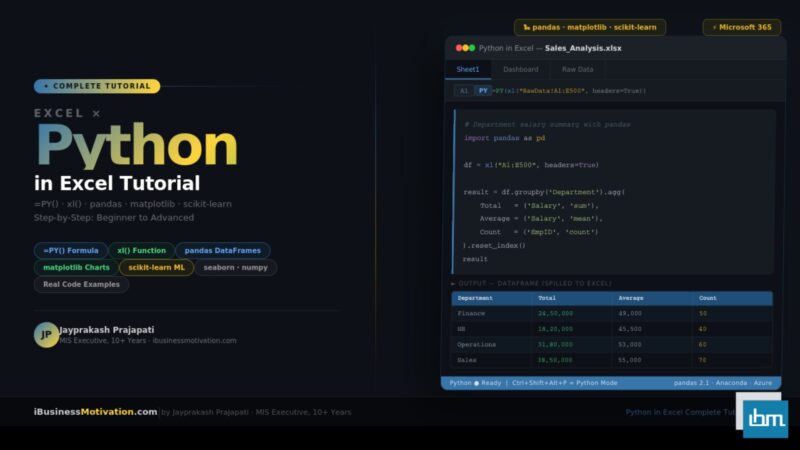


Excel has always been the world’s most-used data tool. Python has rapidly become the world’s most popular language for data analysis. For years, professionals had to choose between them – or constantly export data out of Excel, run Python scripts, and paste results back. Microsoft ended that frustration in 2023 when it embedded Python directly inside Excel cells.
With Python in Excel, you can now write pandas code to analyze millions of rows, create matplotlib charts that live inside your spreadsheet, run scikit-learn prediction models, and clean data using Python – all directly in an Excel cell, without ever opening a separate IDE or command line.
This Python in Excel Tutorial covers everything you need from scratch: what it is, how to enable it, your first =PY() formula, working with xl() to read Excel data into pandas, creating charts, real-world use cases, error fixes, and a full comparison with VBA and Power Query.
What Is Python in Excel? How Does It Work?
Python in Excel is a native feature introduced by Microsoft in August 2023, available for Microsoft 365 subscribers. It allows users to enter Python code directly into an Excel cell using the =PY() formula prefix. The code is executed on Microsoft’s Azure cloud servers using the full Anaconda Python distribution – meaning 300+ pre-installed data science libraries are available without any local setup.
This is completely different from using openpyxl or xlwings externally. With Python in Excel, the code lives inside the spreadsheet. It can read your worksheet data through the xl() function, process it with Python libraries, and return results back into cells – as spilled tables, formatted values, or rendered matplotlib charts.
How It Works Under the Hood:
When you type =PY( and enter Python code, Excel sends the code to a secure Microsoft Azure cloud container. The container runs Python using Anaconda (the same distribution used by data scientists worldwide). Results are returned to your cell as Python objects or converted Excel values. Your data stays within your Microsoft 365 tenant boundary and is processed in an isolated environment.
Pre-Installed Python Libraries Available in Excel
| Library | What It Does | Excel Use Case |
| pandas | DataFrames, filtering, grouping, pivoting | Analyze employee, sales, or finance data |
| matplotlib | Charts: bar, line, scatter, pie, heatmap | Visualize trends and comparisons inside Excel |
| numpy | Fast numerical arrays and math operations | Calculations on large numeric datasets |
| scikit-learn | Machine learning: regression, clustering | Predictive models built inside a spreadsheet |
| seaborn | Statistical visualization built on matplotlib | Advanced, publication-quality charts |
| statsmodels | Statistical analysis and regression | Time series, hypothesis tests, ANOVA |
| scipy | Scientific computing and signal processing | Outlier detection, optimization, statistics |
| nltk / spacy | Natural language processing | Analyze and classify text columns in Excel |
How to Enable Python in Excel – Complete Setup Guide
Python in Excel is available for Microsoft 365 users on Windows (and progressively rolling out for Mac and Excel Online). Here is the complete setup process:
Verify Your Microsoft 365 Subscription and Update Channel
- Open Excel and go to File > Account.
- Under Product Information, verify you have a Microsoft 365 subscription (not a one-time Excel 2021/2019 purchase).
- Check your Update Channel – Python in Excel requires Current Channel or Beta Channel.
- If you are on Semi-Annual Channel, click Update Options > Change Update Channel > Current Channel.
- Then click Update Options > Update Now to download the latest build.
Enable Python in Excel
- Open any Excel workbook.
- Click the Formulas tab in the ribbon.
- In the Formula Auditing or Calculation group, look for Python. If visible, click Enable Python.
- If prompted by a dialog about the Anaconda environment, click Accept to confirm the terms.
- Wait 10–30 seconds for the first-time environment initialization – this only happens once.
Fastest Way to Check
Click any empty cell and type =PY( – if Excel recognizes it and shows a green cell indicator with [PY] in the formula bar, Python in Excel is active on your account. If Excel treats it as an unknown formula text, Python is not yet enabled.
Python in Excel Availability by Platform
| Platform | Available? | Notes |
| Excel for Microsoft 365 (Windows) | Yes – GA since Nov 2023 | Fully supported, recommended |
| Excel for Microsoft 365 (Mac) | Yes – rolled out 2024 | Full feature parity with Windows |
| Excel Online (Browser) | Preview / limited rollout | Basic =PY() works; some features limited |
| Excel 2021 (one-time purchase) | No | Requires M365 subscription |
| Excel 2019 / 2016 / older | No | Not supported |
| Excel iOS / Android | View only | Cannot create =PY() formulas |
Microsoft 365 Required
Python in Excel requires an active Microsoft 365 subscription. It is not available in one-time purchase Excel versions. If you use Excel 2021 or older, Section 11 of this guide covers alternative approaches using openpyxl and pandas externally.
Your First Python Formula – Hello Python in Excel
The fastest way to understand Python in Excel is to write a formula yourself. Let us walk through your first Python formula step by step.
Step 1: Open a New Workbook and Click Cell A1
Step 2: Enter Python Mode
Press Ctrl + Shift + Alt + P – this keyboard shortcut activates Python mode in the current cell. The cell border turns green and [PY] appears in the formula bar. Alternatively, type =PY( directly to start a Python formula.
Step 3: Write Your First Formula
# Simple arithmetic - Python calculates this
result = 240 * 52  # Working hours per year
Press Ctrl + Enter to confirm (important: do not press just Enter, which moves to the next cell).
Step 4: Try a Multi-Line Example
# Multi-line Python - variables and string formatting
employee = 'Ravi Sharma'
department = 'Sales'
salary = 55000
bonus_rate = 0.15

bonus = salary * bonus_rate
total_ctc = salary + bonus

f'{employee} ({department}): Salary={salary}, Bonus={bonus:.0f}, CTC={total_ctc:.0f}'
The Last Expression Rule
In Python in Excel, the last expression in your code is what gets returned to the cell – just like a Python function’s return value. If your last line is a DataFrame variable name, the DataFrame is returned. If it is a string or number, that value is shown.
Output Modes – Python Object vs Excel Value
| Mode | What It Shows | How to Switch |
| Python Object (card) | A Python object icon – the full object is stored in memory | Click the cell icon > Convert to Excel Values |
| Excel Value | Converts result to a spilled table or cell value in Excel format | Right-click > Python Output > Excel Value |
The xl() Function – Reading Your Excel Data into Python
The xl() function is the bridge between your Excel worksheet data and Python. It reads any range, table, or named range from your worksheet and returns it as a Python object – typically a pandas DataFrame for multi-cell ranges, or a scalar value for single cells.
Basic xl() Syntax
# Read a single cell as a Python scalar
target_month = xl("F1")

# Read a range as a pandas DataFrame (with column headers)
df = xl("A1:E500", headers=True)

# Read a named range
sales = xl("SalesTable", headers=True)

# Read from a different sheet
hr = xl("HR_Data!A1:D200", headers=True)

# Read a structured Excel Table by name
orders = xl("Table_Orders[#All]", headers=True)
xl() Return Types
| What You Pass to xl() | What Python Receives | Example |
| Single cell (e.g. A1) | Scalar value (string, number, date) | xl(“A1”) → ‘Sales’ |
| Range with headers=True | pandas DataFrame | xl(“A1:D100”, headers=True) → DataFrame |
| Range without headers | pandas DataFrame with numbered columns | xl(“A1:D100”) → DataFrame (col 0,1,2,3) |
| Named range | pandas DataFrame or scalar | xl(“MyNamedRange”, headers=True) |
| Excel Table name | Full DataFrame with typed columns | xl(“EmployeeTable”, headers=True) |
Best Practice: Use headers=True Always
Always use headers=True when reading tabular data so that pandas uses your column names (Department, Salary, Region, etc.) instead of default numeric indices (0, 1, 2, 3). This makes your code far more readable and easier to maintain when columns are added or reordered.
Pandas Data Analysis Inside Excel – 6 Complete Examples
pandas is the most important library for day-to-day use in Python in Excel. Once you read your Excel data into a DataFrame using xl(), the full pandas API is available. Here are six complete, practical examples.
Example 1: Filter Rows by One or More Conditions
# Filter: Region = North AND Salary > 40,000
df = xl("A1:E500", headers=True)

result = df[
    (df['Region'] == 'North') &
    (df['Salary'] > 40000)
]
result
Example 2: Group By Department – Summary Table
# Department-wise salary summary
df = xl("A1:E500", headers=True)

summary = df.groupby('Department').agg(
    Total_Salary = ('Salary', 'sum'),
    Avg_Salary   = ('Salary', 'mean'),
    Headcount    = ('EmpID', 'count'),
    Max_Salary   = ('Salary', 'max')
).reset_index()

summary['Avg_Salary'] = summary['Avg_Salary'].round(0)
summary
Example 3: Add Calculated Columns
# Add Bonus, Tax, and Net Pay columns
df = xl("A1:C200", headers=True)  # Name, Department, Salary

df['Bonus']   = df['Salary'] * 0.15
df['Tax']     = df['Salary'] * 0.10
df['Net_Pay'] = df['Salary'] + df['Bonus'] - df['Tax']

df[['Name','Department','Salary','Bonus','Tax','Net_Pay']]
Example 4: Rank Within Groups
# Rank employees by salary within each department
df = xl("A1:E500", headers=True)

df['Dept_Rank'] = (
    df.groupby('Department')['Salary']
      .rank(ascending=False, method='dense')
      .astype(int)
)

top3 = df[df['Dept_Rank'] <= 3].sort_values(['Department','Dept_Rank'])
top3
Example 5: Data Cleaning in One Formula
# Clean: remove duplicates, fix text, drop blanks
df = xl("A1:E1000", headers=True)

df = df.drop_duplicates(subset='EmpID', keep='first')
df = df.dropna(subset=['Name','Department','Salary'])
df['Name']       = df['Name'].str.strip().str.title()
df['Department'] = df['Department'].str.strip().str.title()
df['Salary']     = pd.to_numeric(df['Salary'], errors='coerce')
df = df[df['Salary'] > 0]

print(f'Cleaned rows: {len(df)}')
df
Example 6: Pivot Table with pandas
# Pivot: Regions as rows, Departments as columns, sum of Sales
df = xl("A1:D500", headers=True)  # Region, Dept, Month, Sales

pivot = df.pivot_table(
    values  = 'Sales',
    index   = 'Region',
    columns = 'Department',
    aggfunc = 'sum',
    fill_value = 0
)

pivot['TOTAL'] = pivot.sum(axis=1)
pivot
Creating Charts with matplotlib and seaborn in Excel
Python in Excel renders matplotlib and seaborn charts directly as images inside your spreadsheet cells. These charts are more powerful and customizable than native Excel charts – and they update automatically when you recalculate.
Chart 1: Bar Chart – Department-Wise Headcount
import matplotlib.pyplot as plt

df = xl("A1:E500", headers=True)
dept_count = df.groupby('Department').size().sort_values(ascending=False)

fig, ax = plt.subplots(figsize=(9, 5))
bars = ax.bar(dept_count.index, dept_count.values,
              color=['#1F4E79','#2E75B6','#3776AB','#5BA3D9','#BDD7EE'])

ax.bar_label(bars, padding=4, fontsize=10)
ax.set_title('Headcount by Department', fontsize=14, fontweight='bold', pad=15)
ax.set_xlabel('Department', fontsize=11)
ax.set_ylabel('Number of Employees', fontsize=11)
ax.set_ylim(0, dept_count.max() * 1.15)
ax.grid(axis='y', linestyle='--', alpha=0.4)
plt.tight_layout()
plt
Chart 2: Line Chart with Fill – Monthly Revenue Trend
import matplotlib.pyplot as plt
import numpy as np

df = xl("A1:B13", headers=True)  # Month, Revenue

fig, ax = plt.subplots(figsize=(10, 4))
x = range(len(df))

ax.plot(df['Month'], df['Revenue'], marker='o', linewidth=2.5,
        color='#1F4E79', markerfacecolor='#FF6B35', markersize=8, zorder=3)
ax.fill_between(list(x), df['Revenue'], alpha=0.12, color='#1F4E79')

ax.set_title('Monthly Revenue Trend', fontsize=14, fontweight='bold')
ax.set_xlabel('Month'); ax.set_ylabel('Revenue (INR)')
ax.grid(True, linestyle='--', alpha=0.35)
plt.xticks(rotation=45)
plt.tight_layout()
plt
Chart 3: Seaborn Heatmap – Correlation Matrix
import matplotlib.pyplot as plt
import seaborn as sns

df = xl("A1:F200", headers=True)
corr = df.select_dtypes(include='number').corr()

fig, ax = plt.subplots(figsize=(8, 6))
sns.heatmap(corr, annot=True, fmt='.2f', cmap='Blues',
            linewidths=0.5, square=True, ax=ax,
            annot_kws={'size': 9})
ax.set_title('Variable Correlation Matrix', fontsize=13, fontweight='bold', pad=12)
plt.tight_layout()
plt
Chart 4: Grouped Bar Chart – Sales by Region and Quarter
import matplotlib.pyplot as plt
import numpy as np

df = xl("A1:C20", headers=True)  # Region, Quarter, Sales
pivot = df.pivot(index='Quarter', columns='Region', values='Sales')

x = np.arange(len(pivot.index))
width = 0.2
colors = ['#1F4E79','#2E75B6','#5BA3D9','#BDD7EE']

fig, ax = plt.subplots(figsize=(10, 5))
for i, region in enumerate(pivot.columns):
    ax.bar(x + i*width, pivot[region], width, label=region, color=colors[i])

ax.set_title('Quarterly Sales by Region', fontsize=14, fontweight='bold')
ax.set_xticks(x + width*1.5); ax.set_xticklabels(pivot.index)
ax.legend(title='Region'); ax.grid(axis='y', linestyle='--', alpha=0.3)
plt.tight_layout(); plt
Resize Your Chart
After a chart is rendered in a cell, click the cell and drag the row height and column width to make the chart larger. You can also click the chart image icon and select Resize with Cell to have the chart scale automatically as you resize the cell.
Multi-Cell Python Pipelines – Real-World Workflow
One of the most powerful patterns in Python in Excel is chaining multiple Python cells together – each one reading from the previous cell’s output using xl(). This lets you build a clean, readable data pipeline directly inside your spreadsheet.
3-Cell Pipeline: Load → Clean → Visualize
Cell A1 – Load Raw Data:
# Cell A1: Load and prepare raw data
import pandas as pd
raw = xl("RawSales!A1:G2000", headers=True)
raw['Date']    = pd.to_datetime(raw['Date'], errors='coerce')
raw['Month']   = raw['Date'].dt.to_period('M').astype(str)
raw['Quarter'] = raw['Date'].dt.to_period('Q').astype(str)
raw = raw.dropna(subset=['SalesRep','Amount','Region'])
raw
Cell B1 – Aggregate and Summarize (references A1):
# Cell B1: Monthly summary by region
df = xl("A1")  # Read DataFrame from Cell A1

monthly = df.groupby(['Month','Region'])['Amount'].agg(
    Total='sum', Deals='count', Avg='mean'
).reset_index()
monthly['Avg'] = monthly['Avg'].round(0)
monthly = monthly.sort_values('Month')
monthly
Cell C1 – Visualize Summary (references B1):
# Cell C1: Chart from summary data
import matplotlib.pyplot as plt
summary = xl("B1")  # Read from Cell B1

pivot = summary.pivot(index='Month', columns='Region', values='Total').fillna(0)
ax = pivot.plot(kind='bar', figsize=(11, 5), colormap='Blues_r', width=0.7)
ax.set_title('Monthly Sales by Region', fontsize=14, fontweight='bold')
ax.set_xlabel(''); ax.legend(title='Region', bbox_to_anchor=(1,1))
ax.grid(axis='y', linestyle='--', alpha=0.3)
plt.xticks(rotation=45); plt.tight_layout()
plt
Recalculating Python Pipelines
Python cells do not auto-recalculate when source data changes (unlike Excel formulas). To refresh the entire Python pipeline, press Ctrl + Alt + F9 (recalculate all) or right-click a Python cell and choose Recalculate. You can also add a Recalculate All Python Cells button to your Quick Access Toolbar.
Python in Excel vs VBA vs Power Query – Full Comparison
| Criteria | Python in Excel | VBA Macros | Power Query |
| Ease for beginners | Moderate – Python syntax needed | Easy to record, moderate to code | Easy GUI; M code is moderate |
| Data analysis depth | Excellent – full pandas/numpy/scipy | Limited – basic loops and formulas | Good for ETL transforms |
| Charts & visualization | Excellent – matplotlib, seaborn | Basic Excel chart automation | Not available |
| Machine learning | Yes – scikit-learn, statsmodels | No | No |
| Automation & triggers | Manual or on refresh | Buttons, events, timed triggers | On open / scheduled refresh |
| Works offline | No – requires Azure cloud | Yes – fully local | Yes – fully local |
| Excel version needed | Microsoft 365 only | Excel 2007 and above | Excel 2010 and above |
| Performance on large data | Excellent – cloud compute | Slow on 100k+ rows | Fast for ETL pipeline tasks |
| Data security | Sent to Azure (within M365 tenant) | Fully local – most secure | Fully local |
| Shareable output | Yes – Convert to Excel Values | Requires macro-enabled .xlsm | Embedded in workbook |
| Best for | Analysis, ML, visualization | Automation, UI, file operations | Data import, transform, refresh |
The Right Answer: Use All Three
Python in Excel, VBA, and Power Query solve different problems. The best-equipped Excel professionals use Power Query for data connection and ETL, Python for analysis and visualization, and VBA for automation and user interface. They complement each other perfectly.
Common Python in Excel Errors and Fixes
| Error / Issue | Root Cause | How to Fix |
| #PYTHON! error in cell | Python syntax error in your code | Press Ctrl+Shift+Alt+M to open Python Diagnostics and read the exact traceback error |
| xl() returns wrong data or error | Range address is wrong or headers=True is missing | Verify the exact range matches your data; add headers=True for tables with column names in row 1 |
| Chart not rendering – cell shows text | plt is not the last returned expression | Make sure plt is the final line; do not add a semicolon after plt |
| Output is stale after data change | Python cells do not auto-recalculate | Press Ctrl+Alt+F9 to force recalculate all Python formulas in the workbook |
| #SPILL! error | Cells in the output spill range are not empty | Clear all cells in the area where the DataFrame will expand |
| =PY( not recognized | Python in Excel not enabled on account | Verify Microsoft 365 subscription, update to Current Channel, enable from Formulas tab |
| Library not available (ImportError) | Package not in Anaconda pre-installed list | Check docs.microsoft.com for the full supported library list; use openpyxl externally for missing packages |
| Cell shows Python object, not values | Output mode is Python Object, not Excel Value | Right-click cell > Python Output > Convert to Excel Values |
| Cross-cell xl() reference fails | Target cell does not contain a Python object | Confirm the referenced cell (e.g. xl(“A1”)) ran successfully and shows a Python object icon |
Data Privacy Warning
When you use xl() to pass an Excel range to Python, that data is sent to Microsoft Azure cloud servers for processing. Do not use Python in Excel for worksheets containing passwords, personal identification numbers, banking details, or data regulated under GDPR, HIPAA, or other compliance frameworks – unless your organization’s IT and legal team has explicitly approved this.
Advanced Use Case – Predictive Analytics with scikit-learn
Python in Excel is not just for data analysis – it is capable of genuine machine learning. This example builds a linear regression model to forecast revenue for the next 6 months using historical data already inside your Excel sheet.
# Predictive Revenue Forecast using Linear Regression
from sklearn.linear_model import LinearRegression
from sklearn.preprocessing import StandardScaler
from sklearn.metrics import r2_score
import pandas as pd
import numpy as np

# Load 12 months of historical revenue data
df = xl("A1:B13", headers=True)  # Month_Num (1-12), Revenue

X = df[['Month_Num']].values
y = df['Revenue'].values

# Train model
model = LinearRegression()
model.fit(X, y)

# Evaluate fit
y_pred = model.predict(X)
r2 = r2_score(y, y_pred)

# Predict next 6 months (months 13–18)
future_months = pd.DataFrame({'Month_Num': range(13, 19)})
future_months['Predicted_Revenue'] = model.predict(future_months[['Month_Num']])
future_months['Predicted_Revenue'] = future_months['Predicted_Revenue'].round(0)
future_months['Month_Label'] = ['Jan','Feb','Mar','Apr','May','Jun']

print(f'Model R-squared: {r2:.4f}  (1.0 = perfect fit)')
print(f'Monthly growth trend: +{model.coef_[0]:,.0f} per month')
future_months[['Month_Label','Predicted_Revenue']]
Visualize Actual vs Predicted
import matplotlib.pyplot as plt
import numpy as np

df     = xl("A1:B13", headers=True)
future = xl("C1")       # Reference the forecast DataFrame from above

fig, ax = plt.subplots(figsize=(11, 5))

# Historical data
ax.plot(df['Month_Num'], df['Revenue'], 'o-',
        color='#1F4E79', linewidth=2.5, markersize=8, label='Actual')

# Forecast
ax.plot(range(13,19), future['Predicted_Revenue'], 's--',
        color='#FF6B35', linewidth=2.5, markersize=8, label='Forecast')

ax.axvline(x=12.5, color='gray', linestyle=':', alpha=0.5)
ax.set_title('Revenue: Actual vs 6-Month Forecast', fontsize=14, fontweight='bold')
ax.set_xlabel('Month'); ax.set_ylabel('Revenue (INR)')
ax.legend(fontsize=11); ax.grid(linestyle='--', alpha=0.3)
plt.tight_layout(); plt
Python + Excel Without Microsoft 365 – openpyxl and pandas
If you do not have a Microsoft 365 subscription, you can still use Python with Excel through external scripts. Here are the two most practical approaches:
Option A: openpyxl – Read, Write, and Format Excel Files
# pip install openpyxl
import openpyxl
from openpyxl.styles import Font, PatternFill, Alignment
from openpyxl import load_workbook

wb = load_workbook('EmployeeData.xlsx')
ws = wb.active

# Style header row
header_fill = PatternFill(start_color='1F4E79', end_color='1F4E79', fill_type='solid')
header_font = Font(bold=True, color='FFFFFF', name='Arial')

for cell in ws[1]:
    cell.fill = header_fill
    cell.font = header_font
    cell.alignment = Alignment(horizontal='center')

# Add a calculated column - Annual Bonus
ws['F1'] = 'Annual_Bonus'
for row in range(2, ws.max_row + 1):
    salary = ws.cell(row=row, column=4).value
    ws.cell(row=row, column=6).value = salary * 0.15 if salary else 0

wb.save('EmployeeData_Updated.xlsx')
print('File saved successfully!')
Option B: pandas – Full Analysis Pipeline → Export to Excel
# pip install pandas openpyxl
import pandas as pd

# Read Excel
df = pd.read_excel('SalesData.xlsx', sheet_name='MasterData')

# Analysis
summary = df.groupby('Region')['Sales'].agg(['sum','mean','count'])
summary.columns = ['Total_Sales','Avg_Sales','Deal_Count']
summary = summary.sort_values('Total_Sales', ascending=False)

top_reps = df.nlargest(10, 'Sales')[['SalesRep','Region','Sales']]

# Export to Excel with multiple sheets
with pd.ExcelWriter('SalesReport.xlsx', engine='openpyxl') as writer:
    df.to_excel(writer, sheet_name='Raw Data', index=False)
    summary.to_excel(writer, sheet_name='Regional Summary')
    top_reps.to_excel(writer, sheet_name='Top 10 Reps', index=False)

print('SalesReport.xlsx created with 3 sheets!')
Frequently Asked Questions – Python in Excel
Python in Excel is included with all Microsoft 365 subscriptions at no additional cost. There is no separate Python license or Anaconda subscription required. However, it is not available in one-time purchase Excel versions like Excel 2021 or Excel 2019.
No. Python in Excel runs on Microsoft Azure cloud servers using a hosted Anaconda environment. You do not need to install Python, pip, conda, or any IDE on your local machine. The only requirement is Excel for Microsoft 365 and an internet connection.
Microsoft states that data processed through Python in Excel remains within your Microsoft 365 tenant boundary, is processed in an isolated container, and is not retained after the session. However, the data does leave your local machine. Check your organization’s compliance policy before using Python in Excel with sensitive or regulated data.
Not directly. Python in Excel uses a fixed Anaconda distribution maintained by Microsoft. You cannot use pip install to add packages. If a library is not on the supported list, you must use an external approach like openpyxl or pandas with a local Python installation.
Python in Excel runs Python inside Excel cells on Microsoft’s cloud – no local setup needed. xlwings runs Python scripts on your local machine and connects to a locally installed Excel via COM automation. Python in Excel is simpler to start with. xlwings gives more control, supports custom packages, works offline, and allows bidirectional live data exchange.
Summary: Python in Excel Changes Everything
Python in Excel is not just a feature update – it is a fundamental shift in what Excel can do. For the first time, Excel users can access the full Python data science ecosystem without leaving their spreadsheet. They can analyze millions of rows with pandas, build publication-quality charts with matplotlib, detect statistical anomalies with scipy, and build predictive models with scikit-learn – all in cells they can share with any Excel user.
| Skill Level | Focus Area | Key Goal |
| Beginner | Enable Python, =PY() basics, xl() function | Successfully load one Excel table into a pandas DataFrame |
| Beginner+ | Filter, groupby, calculated columns with pandas | Build a department-wise salary summary from real data |
| Intermediate | matplotlib charts, seaborn heatmaps | Create a bar chart of regional sales inside Excel |
| Intermediate+ | Multi-cell pipelines, Convert to Values, sharing | Build a 3-cell load → clean → chart workflow |
| Advanced | scikit-learn ML, statsmodels forecasting, seaborn | Build a 6-month revenue forecast with accuracy metrics |
The single best next step: open Excel right now, press Ctrl+Shift+Alt+P, and type your first =PY() formula. Load one of your existing Excel tables with xl() and call .describe() on it to see instant descriptive statistics. That one formula will immediately demonstrate why Python in Excel is the biggest change to Excel in a generation.
Free Excel Tools at ibusinessmotivation.com: Alongside Python in Excel, visit ibusinessmotivation.com for browser-based tools that complement your Excel workflow: Multiple Excel File Merger, Excel Data Cleaner, and Excel Worksheet Split Tool – free, no-code, browser-based, and no installation required.