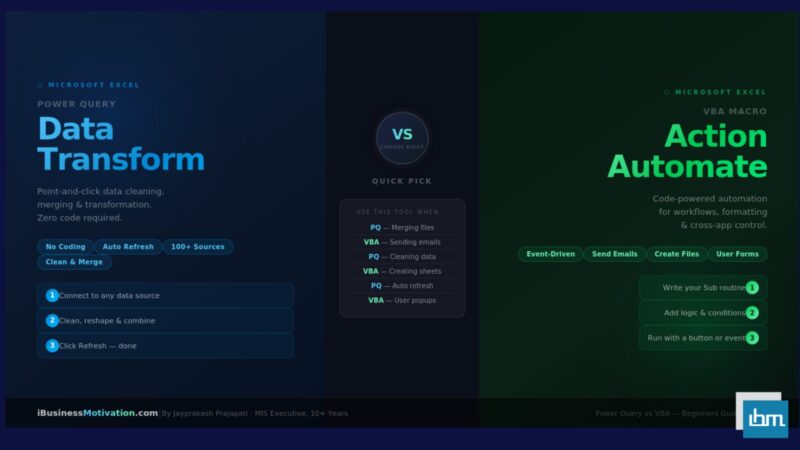


If you have spent any time working with Excel data, you have almost certainly faced a choice: should I use Power Query or write a VBA macro to solve this problem? Both tools live inside Microsoft Excel. Both can save you enormous amounts of time. But they work in completely different ways – and choosing the wrong one for a task can make your life far more complicated than it needs to be.
This guide will give you a clear, honest, beginner-friendly explanation of what each tool is, how each one works, where each one truly shines, and – most importantly – a practical decision framework you can use every single time you face this choice. No confusing jargon. No vague advice. Just real, actionable guidance backed by real-world examples.
Section 1: What Is Power Query?
Power Query is a data transformation and preparation tool built into Excel (available since Excel 2016 and as an add-in for Excel 2010/2013). It gives you a visual, step-by-step interface to import, clean, reshape, and combine data – without writing a single line of code.
When you use Power Query, every action you take – removing a column, filtering rows, changing a data type, merging two tables – is recorded as a step. These steps are stored in a query. The next time you click Refresh, Power Query replays all those steps instantly on your updated data.
Power Query Key Facts
- Available in: Excel 2016, 2019, 2021, Microsoft 365 (and as add-in for 2010/2013)
- Location: Data tab > Get & Transform Data group > Get Data
- Language: M language (generated automatically from your clicks – you rarely need to type it)
- Primary purpose: Connecting to data sources, cleaning messy data, reshaping tables
- Skill level needed: Beginner to Intermediate – mostly point-and-click
What Can Power Query Do?
- Connect to hundreds of data sources: Excel files, CSV, databases, SharePoint, web pages, APIs, PDFs
- Combine (append or merge) multiple files or tables automatically
- Remove duplicates, blank rows, and unwanted columns in seconds
- Split, merge, or transform columns (e.g., split full name into first and last name)
- Unpivot and pivot data to reshape table structure
- Change data types, replace values, and standardize formats
- Automatically refresh when source data changes – with one click
Section 2: What Is VBA?
VBA (Visual Basic for Applications) is a full programming language built into Microsoft Excel and other Office applications. Unlike Power Query, which works through a visual interface, VBA requires you to write actual code – instructions that tell Excel exactly what to do, step by step.
A VBA Macro is a set of coded instructions saved inside your workbook. You can run a macro manually, assign it to a button, trigger it with a keyboard shortcut, or make it run automatically when a specific event occurs – like when you open a file, change a cell value, or click a particular sheet.
VBA Key Facts
- Available in: All Excel versions from Excel 97 to Microsoft 365
- Location: Developer tab > Visual Basic (or press Alt + F11)
- Language: Visual Basic for Applications (VBA) – a full programming language
- Primary purpose: Automating actions, building tools, interacting with users, controlling.
- Excel behavior Skill level needed: Intermediate – requires learning programming syntax
What Can VBA Do?
- Automate repetitive formatting, copying, pasting, and organizing tasks
- Create interactive tools with buttons, message boxes, input boxes, and forms
- Send emails through Outlook automatically from Excel
- Create, save, rename, and delete files and sheets
- Loop through thousands of rows and apply conditional logic
- Respond to events (open workbook, change cell, click button)
- Control other Office applications: Word, PowerPoint, Outlook, Access
Section 3: The Core Difference – Data vs. Actions
The single most important concept in this entire guide is this: Power Query is built for data transformation, while VBA is built for automating actions. Understanding this one idea will guide 90% of your tool selection decisions.
The Golden Rule: If your task is about getting data into shape – cleaning it, combining it, reshaping it, refreshing it – use Power Query. If your task is about making Excel do something – clicking, sending, creating, formatting, responding – use VBA.
Think of it like this analogy: Power Query is like a water filter. You put messy water in, it cleans and transforms it, you get clean usable water out – automatically every time. VBA is like a chef. A chef takes ingredients and uses skill, judgment, and tools to cook them in many different ways – responding to different situations.
| Characteristic | Power Query | VBA |
| Primary purpose | Data cleaning & transformation | Action automation & tool building |
| How it works | Visual step-by-step point-and-click | Written code instructions |
| Handles data refresh | Yes – one-click automatic refresh | Only if you code it manually |
| Can interact with user | No | Yes – MsgBox, InputBox, Forms |
| Can send emails | No | Yes (via Outlook) |
| Can create/delete files | No | Yes |
| Can respond to events | No | Yes (open, click, change) |
| Handles messy data | Excellent – built for this | Possible but complex to code |
| Combine multiple files | Yes – built-in, automatic | Possible but requires loops |
| Error handling | Visual – easy to spot | Requires On Error code |
| Requires coding knowledge | No (M language is auto-generated) | Yes |
| Works without Excel desktop | Yes (Power BI, web) | No – Excel only |
| Saved format required | Any Excel format | .xlsm (Macro-Enabled) |
Section 4: Strengths and Weaknesses of Each Tool
Power Query – Strengths
- No coding required: Anyone with basic Excel skills can use it after a few hours of practice.
- Repeatable and refreshable: Build the query once, click Refresh whenever your source data updates. Power Query replays all steps automatically.
- Handles messy data beautifully: Multiple data types in one column, inconsistent formatting, blank rows, merged cells – Power Query has dedicated tools for all of it.
- Combines multiple files effortlessly: Merging 20 Excel files from a folder into one table takes about 5 clicks and 2 minutes.
- Transparent and auditable: Every transformation step is visible and labelled in the Applied Steps panel. Anyone can review or undo individual steps.
- Connects to almost anything: Excel, CSV, PDF, databases (SQL Server, Oracle, MySQL), SharePoint, web pages, REST APIs – all built-in connectors.
Power Query – Weaknesses
- take actions: Power Query cannot send emails, create files, show popups, or respond to button clicks.
- Output is a table, not a process: It transforms data into a result. It cannot loop through rows and apply different logic to each one based on conditions.
- Limited to data sources: It can only work with data it can connect to. It cannot control other applications or automate workflows outside of data loading.
- Manual refresh needed: Unless you use Power Automate or Task Scheduler, Power Query does not run
VBA – Strengths
- Can do almost anything inside Excel: If you can do it manually in Excel, you can almost certainly automate it with VBA.
- Event-driven automation: Run automatically when a workbook opens, a cell changes, a sheet is activated, or a button is clicked.
- Cross-application control: Control Word, Outlook, PowerPoint, and Access from a single VBA script.
- User interaction: Build interactive tools with message boxes, input prompts, dropdown menus, and full UserForms.
- Custom functions: Write your own Excel functions (UDFs – User Defined Functions) that appear in the formula bar like built-in functions.
VBA – Weaknesses
- Requires coding knowledge: VBA has a real learning curve. Variables, loops, error handling, object models – there is real programming involved.
- Maintenance burden: VBA code can become complex and fragile. When the workbook structure changes, macros often break and need updating.
- Security restrictions: Many corporate IT environments disable macros by default. Your automated .xlsm file may not run on a colleague’s computer without permission changes.
- Poor at data transformation: Writing VBA to do what Power Query does in 3 clicks (merge 20 files, unpivot a table) takes hundreds of lines of code.
- No data refresh intelligence: VBA does not know when source data has changed. You must code the trigger yourself.
Section 5: Real-World Use Cases – Which Tool Fits Which Job?
The best way to solidify your understanding is through real scenarios. Here are 12 common Excel tasks matched to the right tool – with an explanation of why.
| Real-World Task | Best Tool | Why |
| Combine 15 regional sales files into one master table | Power Query | Folder connector auto-merges files. One Refresh updates all. |
| Remove duplicates and blank rows from imported CSV | Power Query | Remove Duplicates and Remove Blank Rows are built-in steps. |
| Send personalized email to each row in a list | VBA | Power Query cannot interact with Outlook. VBA loops and sends. |
| Normalize date formats from multiple departments | Power Query | Change Type and locale settings handle this in 2 clicks. |
| Auto-format a report with bold headers and colors | VBA | Formatting cells is an action. VBA applies styles in a loop. |
| Import data from a SQL Server database | Power Query | Built-in database connectors make this a guided wizard. |
| Create a new sheet for each region automatically | VBA | Creating and naming sheets is an action – VBA handles it. |
| Unpivot a wide table into a long normalized table | Power Query | Unpivot Columns is a single click in Power Query. |
| Pop up a reminder when opening the workbook | VBA | Workbook_Open event in VBA triggers the MsgBox automatically. |
| Clean and load 500,000 rows from a web API | Power Query | Power Query handles large datasets and web connectors natively. |
| Save each sheet as a separate Excel file | VBA | File creation is an action. VBA loops through sheets and saves. |
| Build a live dashboard that refreshes with one click | Both (combined) | Power Query preps the data; VBA adds the Refresh button and formatting. |
Section 6: The 5-Question Decision Framework
You do not need to memorize rules. You just need to ask five questions every time you face a new automation task. These questions will point you to the right tool almost every time.
The 5-Question Decision Framework:
Ask these questions in order. Stop at the first question that gives you a definitive answer.
Question 1: Is this task about getting data ready – or making Excel do something?
Data readiness tasks (importing, cleaning, reshaping, combining) point to Power Query. Action tasks (sending, creating, formatting, responding) point to VBA. This single question resolves about 60% of decisions.
Question 2: Does the source data change regularly and need refreshing?
If yes, and the task is data transformation, Power Query is strongly preferred. Its one-click Refresh is designed exactly for this. If you use VBA for a task that needs regular data updates, you have to code the refresh logic yourself – which Power Query gives you for free.
Question 3: Does the task need to interact with the user or other applications?
If your task requires showing a message, asking for input, sending an email through Outlook, creating a Word document, or responding to a button click – the answer is VBA. Power Query has no user interaction capabilities whatsoever.
Question 4: What is the technical skill level of the person maintaining this in the future?
If the automation will be maintained by a non-technical team member, Power Query is far safer. Its steps are visual and readable even by someone with no coding knowledge. VBA code, without good documentation, is often a black box that only the original author can understand and fix.
Question 5: Does this task need to run automatically without anyone clicking anything?
If yes, neither tool handles this alone – you will need Power Automate (for Power Query refresh) or Windows Task Scheduler (for VBA) to schedule automatic execution. In this case, the data preparation part uses Power Query and the trigger mechanism uses an external tool or VBA event.
| Question | Answer | Use This Tool |
| Data transformation or action? | Data transformation | Power Query |
| Data transformation or action? | Action / workflow | VBA |
| Needs regular data refresh? | Yes, from changing sources | Power Query |
| Needs user interaction? | Yes (popups, emails, buttons) | VBA |
| Maintained by non-technical users? | Yes | Power Query |
| Requires complex conditional logic per row? | Yes | VBA |
| Connects to database / web / SharePoint? | Yes | Power Query |
| Creates, saves, or deletes files? | Yes | VBA |
| Task involves both data prep AND actions? | Yes | Use Both Together |
Section 7: The Power Combination – Using Power Query AND VBA Together
Here is something that surprises many beginners: Power Query and VBA are not enemies. They are complementary. Some of the most powerful Excel automation solutions use both tools in the same workbook, each doing what it does best.
The Power Combination Pattern: Power Query handles the data layer: connect, clean, transform, load. VBA handles the interaction layer: trigger, format, distribute, notify. Together, they create end-to-end automated workflows that neither could achieve alone.
Real Example: Automated Weekly MIS Report
Here is how a combined Power Query + VBA workflow replaced a 4-hour manual Monday process:
- Power Query connects to five department folders and auto-merges all files into one clean master table whenever Refresh is clicked.
- Power Query removes duplicates, fixes formatting, and standardizes region names – all in under 2 minutes.
- A VBA macro assigned to a button triggers Queries.Execute to refresh all queries with one click.
- The same VBA macro then loops through the loaded data, creates one sheet per region, and saves each as a separate file.
- VBA then opens Outlook and emails each regional head their file – automatically.
Total time: 11 minutes. Without the combination, neither tool alone could complete the entire workflow.
How VBA Can Trigger Power Query Refresh
You can call a Power Query refresh from VBA using this simple code:
' Refresh a specific Power Query
ThisWorkbook.Connections("Query - SalesData").Refresh

' Refresh ALL queries in the workbook
Dim cn As WorkbookConnection
For Each cn In ThisWorkbook.Connections
    cn.Refresh
Next cn
Section 8: Common Mistakes Beginners Make When Choosing
| Mistake | Why It Happens | Better Approach |
| Using VBA to clean and combine data files | VBA is more familiar to some users, so they default to it | Use Power Query – it is faster, cleaner, and requires no code for this task |
| Using Power Query and expecting it to format the output report | Misunderstanding Power Query’s scope | Power Query loads data into a table; use VBA or manual formatting for the output design |
| Writing complex VBA loops to unpivot a table | Programmer mindset applied to a point-and-click problem | Unpivot Columns in Power Query is a single click – no code needed |
| Expecting Power Query queries to run automatically on a schedule | Misunderstanding what Refresh means | Scheduled refresh requires Power Automate or an external scheduler |
| Building everything in VBA then struggling when data structure changes | VBA is rigid – if columns move, code breaks | Use Power Query for data loading so structure changes are handled automatically |
| Combining both but not documenting which tool does what | Poor planning leads to maintenance confusion | Create a simple workflow map showing what Power Query handles vs what VBA handles |
Important Note for Beginners: The most common beginner mistake is defaulting to whichever tool they learned first and trying to force it to do everything. Power Query users try to use it for formatting. VBA users write 200-line macros to do what Power Query does in 3 clicks. Choose the right tool for each part of the task.
Section 9: Learning Roadmap – Which Should You Learn First?
If you are brand new to Excel automation and wondering where to begin, here is the recommended learning order based on practical impact:
| Stage | What to Learn | Time Investment | Immediate Benefit |
| Stage 1 | Power Query basics: connect, clean, merge, refresh | 5-8 hours | Eliminate manual file merging and data cleaning forever |
| Stage 2 | Power Query intermediate: merge queries, unpivot, group by | 4-6 hours | Handle complex data reshaping without any code |
| Stage 3 | VBA basics: Sub, variables, loops, MsgBox | 6-10 hours | Automate repetitive formatting and simple workflows |
| Stage 4 | VBA intermediate: working with sheets, events, file handling | 8-12 hours | Build complete automated reporting tools |
| Stage 5 | Combined workflows: Power Query data + VBA triggers | 4-6 hours | End-to-end automation from raw data to distributed reports |
Recommended Starting Point: Start with Power Query. It delivers immediate value with almost no learning barrier. Within a few hours you will be able to automate tasks that previously took 30-60 minutes every week. Once you are comfortable with Power Query, begin learning VBA to add the action and interaction layer.
Frequently Asked Questions
No. Power Query is excellent at data transformation but has no ability to automate actions, interact with users, send emails, create files, or respond to events. For a complete automation solution, both tools are often needed – Power Query for data preparation, VBA for workflow automation.
Power Query is built into Excel 2016, 2019, 2021, and Microsoft 365. For Excel 2010 and 2013, it is available as a free downloadable add-in from Microsoft. It is not available in Excel 2007 or earlier.
Yes, absolutely. Power Query in Excel is completely independent of Power BI. They share the same M language and query engine, but you do not need Power BI to use Power Query in Excel.
Yes. Power Query works without macros and does not require any special security permissions. If your organization blocks VBA, Power Query is your primary automation tool for data tasks. For action automation, you may need to use Power Automate (a separate Microsoft tool) instead of VBA.
Power Query is generally better for large datasets. It loads data into the Excel Data Model using efficient columnar storage, and it does not load all rows into Excel cells the way VBA does. For very large data, Power Query with the Data Model (Power Pivot) is significantly faster than VBA loops.
Not natively with a built-in connector. However, you can export Google Sheets data to CSV or Excel format and have Power Query read from that location. Some third-party connectors also provide Google Sheets connectivity for Power Query.
Yes – and you will be glad you did. Even experienced VBA developers find that Power Query handles data transformation tasks in a fraction of the time and code. Using VBA where Power Query is better results in longer, more fragile code. The two tools complement each other; knowing both makes you significantly more effective.
Summary and Quick Reference
After reading this guide, you now have a clear mental model for choosing between Power Query and VBA. Here is a final quick-reference summary:
| If you need to… | Use |
| Import data from files, databases, web, or SharePoint | Power Query |
| Clean, deduplicate, or reshape messy data | Power Query |
| Combine multiple files from a folder automatically | Power Query |
| Refresh updated data with one click | Power Query |
| Unpivot or pivot a table structure | Power Query |
| Automate formatting, colors, and styles | VBA |
| Send emails or interact with Outlook | VBA |
| Create, save, or delete Excel files and sheets | VBA |
| Show popups, buttons, or user input forms | VBA |
| Respond to events (open workbook, click, change) | VBA |
| Do both data prep AND workflow automation | Power Query + VBA |
The choice is not Power Query versus VBA – it is Power Query and VBA, each used where it genuinely belongs. Master both tools, understand their boundaries, and you will be able to automate virtually any Excel workflow you encounter.
Free Tools at ibusinessmotivation.com: Need browser-based Excel automation without any coding? Visit ibusinessmotivation.com for free tools including the Multiple Excel File Merger, Excel Data Cleaner, and Excel Worksheet Split Tool – no Power Query or VBA knowledge required. Free for files up to 2MB.