

You received a JSON file from your developer, your CRM export, or an API integration – and now your manager wants the data in Excel. Today. You open the file and see curly braces, square brackets, and nested structures that make no sense without a technical background.
This is one of the most common data problems faced by business analysts, operations teams, and HR professionals who work at the edge of technology and spreadsheets. You need the data in Excel – you just do not have time to write Python code or figure out how to import JSON manually.
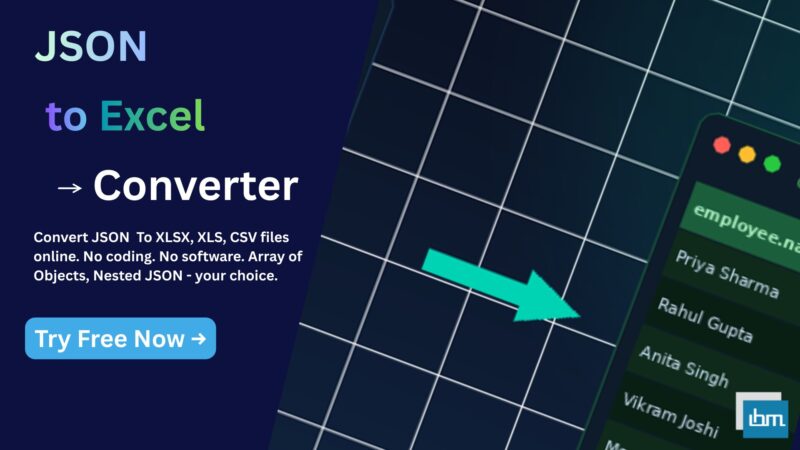
Our free JSON to Excel Converter tool solves this in under 60 seconds. Paste your JSON or upload a file – the tool handles nested objects, arrays, filtering, and sorting – and delivers a clean, ready-to-use Excel file.
What Is JSON and Why Do Business Users Receive It?
JSON – JavaScript Object Notation – is the standard format used by almost every modern software system, API, CRM, ERP, and web application to export and exchange data. When you download data from Salesforce, HubSpot, Razorpay, WooCommerce, or any REST API, the file you receive is often in JSON format.
The problem is that JSON is designed for computers, not for spreadsheets. It stores data in a nested, hierarchical structure – which is powerful for software but completely unreadable in Excel without conversion. A single customer record in JSON might look like this:
{ "name": "Rahul Sharma", "department": "HR", "salary": 55000, "address": { "city": "Mumbai", "state": "Maharashtra" } }That single record has nested data inside it – the address object contains city and state. When you need to analyze 500 such records in Excel, you cannot simply open the JSON file. You need a converter that understands and flattens this structure correctly.
That single record has nested data inside it – the address object contains city and state. When you need to analyze 500 such records in Excel, you cannot simply open the JSON file. You need a converter that understands and flattens this structure correctly.
How to Convert JSON to Excel Online – Step by Step
Our JSON to Excel tool gives you two input methods and complete control over the output structure.
Step 1 – Enter or Upload Your JSON Data
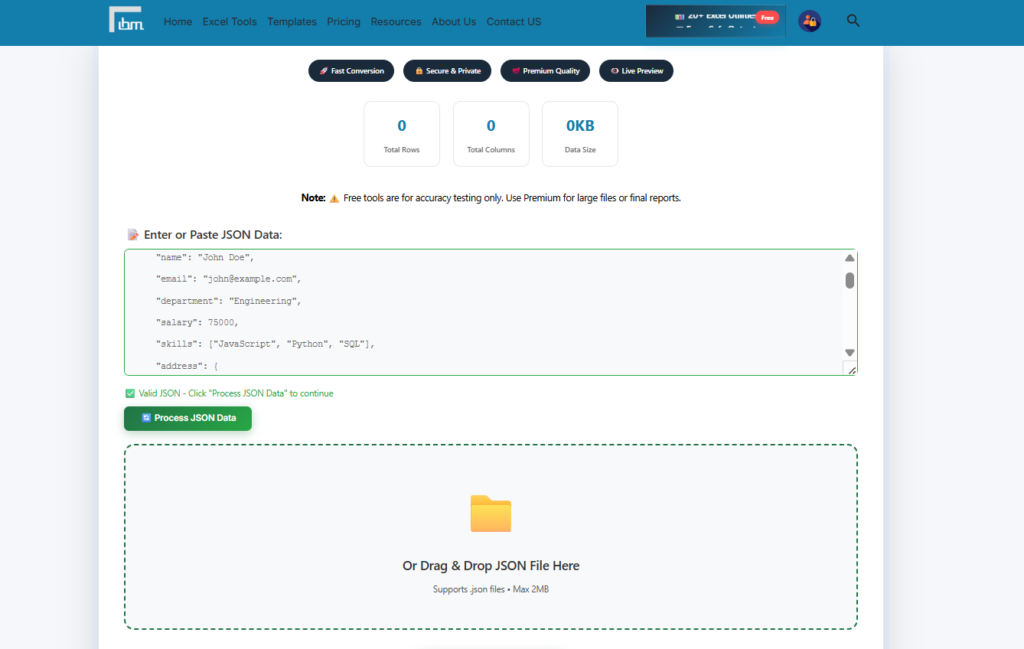
You can either paste your JSON directly into the text box, or upload a .json file by dragging and dropping it onto the upload zone. The free version supports files up to 2MB. The moment your data is entered, the tool immediately shows you the total number of rows and columns detected, and the data size – so you know exactly what you are working with before converting.
Step 2 – Configure Advanced Conversion Options
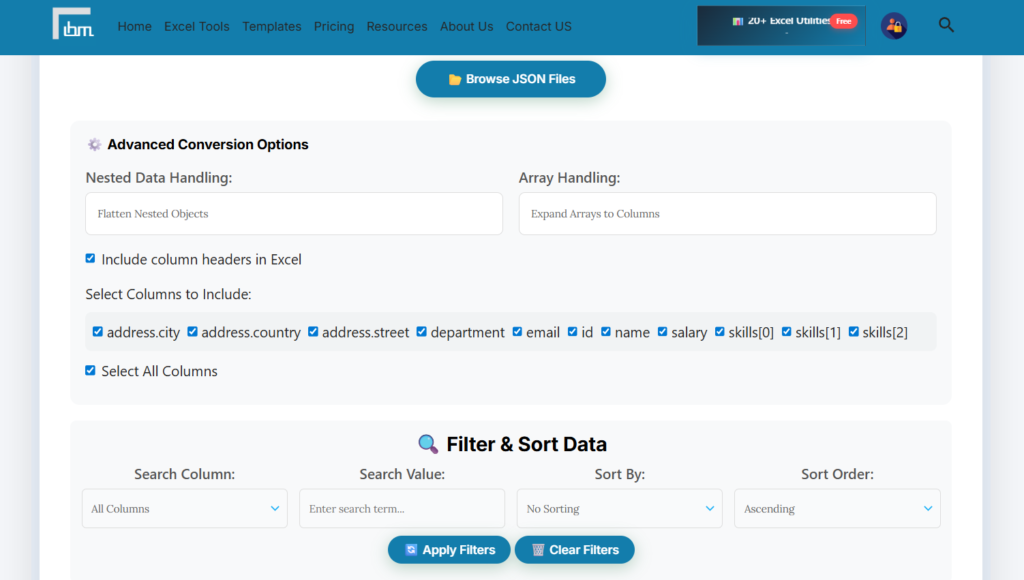
This is where our tool is different from basic converters. You have full control over how the conversion happens:
- Nested Data Handling: Choose to Flatten Nested Objects – each nested key becomes its own column in Excel. Or Keep Nested Structure to preserve the original format. Or Ignore Nested Objects entirely if you only need the top-level data.
- Array Handling: Expand Arrays to Columns so each array element gets its own column. Or Convert Arrays to Strings to keep them in a single cell. Or Ignore Arrays if they are not relevant to your analysis.
- Column Headers: Toggle whether column headers appear in your Excel output – helpful when the file will be used in automated pipelines.
- Select Columns to Include: Choose exactly which columns from your JSON data should appear in the Excel output. You can select all or pick specific ones – useful when your JSON has 30 fields but you only need 8 for your report.
Step 3 – Filter and Sort Before You Download
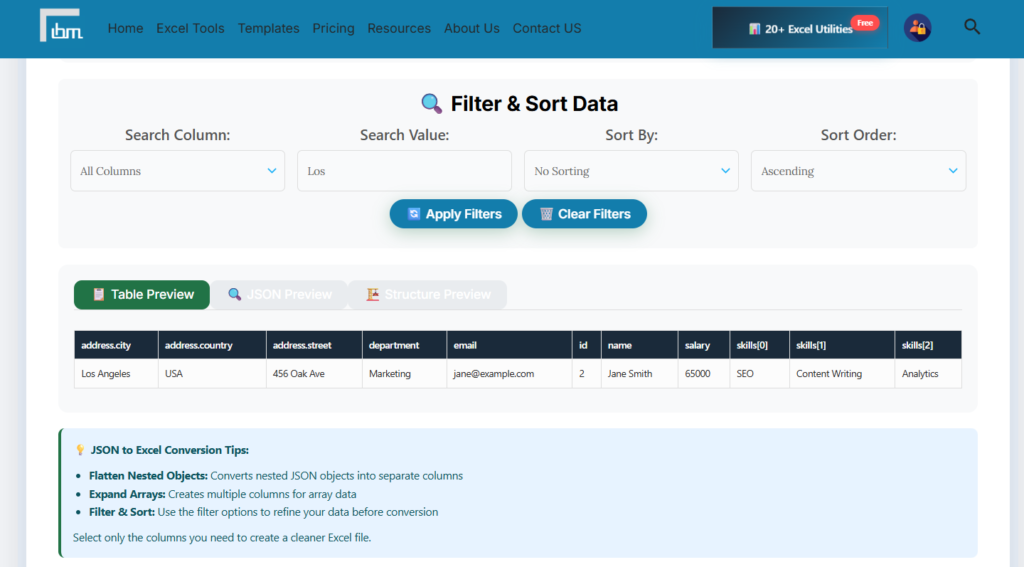
Before converting, you can apply filters and sorting directly inside the tool – without needing to open Excel first. Search within a specific column or across all columns. Sort your data in ascending or descending order by any column. Apply filters to show only the records that match your criteria.
This feature is particularly useful when you are working with large JSON exports – like a full CRM data dump – and you only need records from a specific city, department, or date range.
Step 4 – Preview, Then Download
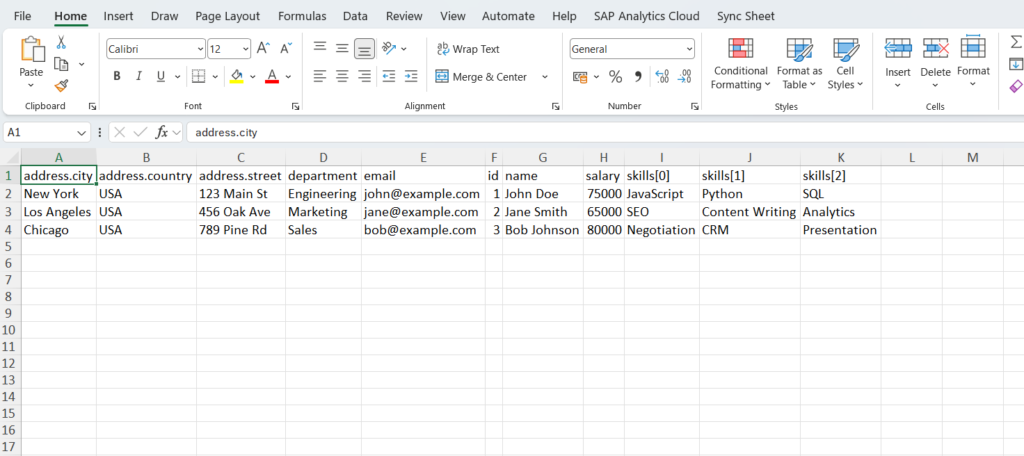
Before downloading, three preview modes help you verify the output is correct. The Table Preview shows your converted data in a spreadsheet-style grid. The JSON Preview shows the original structure. The Structure Preview shows how nested data has been mapped to columns.
Once you are satisfied, download in your preferred format:
- Download Excel (.xlsx): Fully formatted spreadsheet, ready to open in Microsoft Excel or Google Sheets
- Download CSV: Plain text format for compatibility with any data system, database, or reporting tool
- Download JSON: Re-download the processed and filtered data in JSON format for use in other systems
How Nested JSON Data Gets Converted to Excel Columns
Nested JSON is the most common challenge in JSON-to-Excel conversion. When a JSON record contains objects inside objects – like an address block inside a customer record – a basic converter either breaks or puts all the nested data into a single cell as text. Our Flatten Nested Objects option handles this correctly. Each nested key becomes a separate column with a clear, readable header. For example:
Before Flattening (in JSON):
{ "employee": { "name": "Priya", "dept": "Finance" }, "salary": 72000 }After Flattening (in Excel):
| employee.name | employee.dept | salary |
| Priya | Finance | 72000 |
The result is a clean, analysis-ready Excel sheet – no manual cleanup, no copy-paste, no formula work.
Who Uses a JSON to Excel Converter – Real Use Cases
- Data Analysts: Converting API responses and database exports into Excel for pivot tables, charts, and business reporting
- HR Teams: Exporting employee records from HRMS systems that output JSON and converting them to Excel for payroll processing
- E-commerce Teams: Converting WooCommerce, Shopify, or Razorpay order export JSON into Excel for sales analysis and reconciliation
- Operations Managers: Processing JSON data exports from inventory, logistics, or CRM systems into structured Excel reports
- Freelancers and Consultants: Delivering client data in clean Excel format after receiving raw JSON exports from client systems
Free vs Premium – What Is the Difference?
The free version of the JSON to Excel Converter handles files up to 2MB – suitable for most single exports, API samples, and smaller data sets. All core features are included: paste or upload, nested handling, array options, filter and sort, and three download formats.
For teams dealing with large JSON exports – complete database dumps, bulk API exports, or system migration data – the Premium plan at ₹299 per month or ₹2,999 per year unlocks:
- File size support up to 15MB – handle large exports without splitting files manually
- Access to all 20 premium Excel tools – Data Cleaner, File Merger, CSV Converter, Worksheet Splitter, and more
- Priority processing with no wait time
- 7-Day Money Back Guarantee – try risk-free, cancel anytime
Frequently Asked Questions
Upload your JSON file or paste your JSON data into our free online tool. Select how you want nested objects and arrays handled. Apply any filters or sorting. Click Convert and download your Excel file. No Python, no programming, no technical skills required.
When you select the Flatten Nested Objects option, each nested key becomes a separate column in Excel with a clear header showing the full path – for example, address.city or employee.department. This makes deeply nested JSON completely readable and filterable in Excel.
Yes. Copy the JSON response from your API tool – Postman, browser, or any REST client – and paste it directly into the tool. The converter handles standard REST API JSON format including arrays of objects, which is the most common API response structure.
The free version supports JSON data up to 2MB. For larger files up to 15MB, the Premium plan at ₹299/month is available with a 7-day money back guarantee.
After conversion you can download your data as an Excel (.xlsx) file, a CSV file, or back as a JSON file. All three formats are available for every conversion – you choose based on what you need to do with the data next.
All processing happens in your browser. Your JSON data is never uploaded to or stored on any server. This means your API keys, customer data, financial records, or any sensitive information in your JSON file stays completely private.
Conclusion
JSON is the language of modern software systems. Excel is the language of business teams. Every organization that connects the two needs a reliable, no-code conversion tool that handles nested structures correctly, gives control over the output, and delivers clean, ready-to-use results.
Whether you are converting a CRM export, an API response, an HRMS data dump, or an e-commerce order file – our JSON to Excel Converter gives you full control without a single line of code.
Try it free today: https://ibusinessmotivation.com/json-to-excel-converter-free/
Try it free today: https://ibusinessmotivation.com/excel-to-json-converter-free/
Need to process files larger than 2MB or access all 20 premium tools? View Premium Plans – ₹299/month with 7-day money back guarantee.